Workspace troubleshooting 2026
Notion Too Complicated for Personal Use? Start With a Smaller Setup
A reversible workspace reset, a short starter routine, and a practical guide to staying with Notion or trying a simpler way to work.
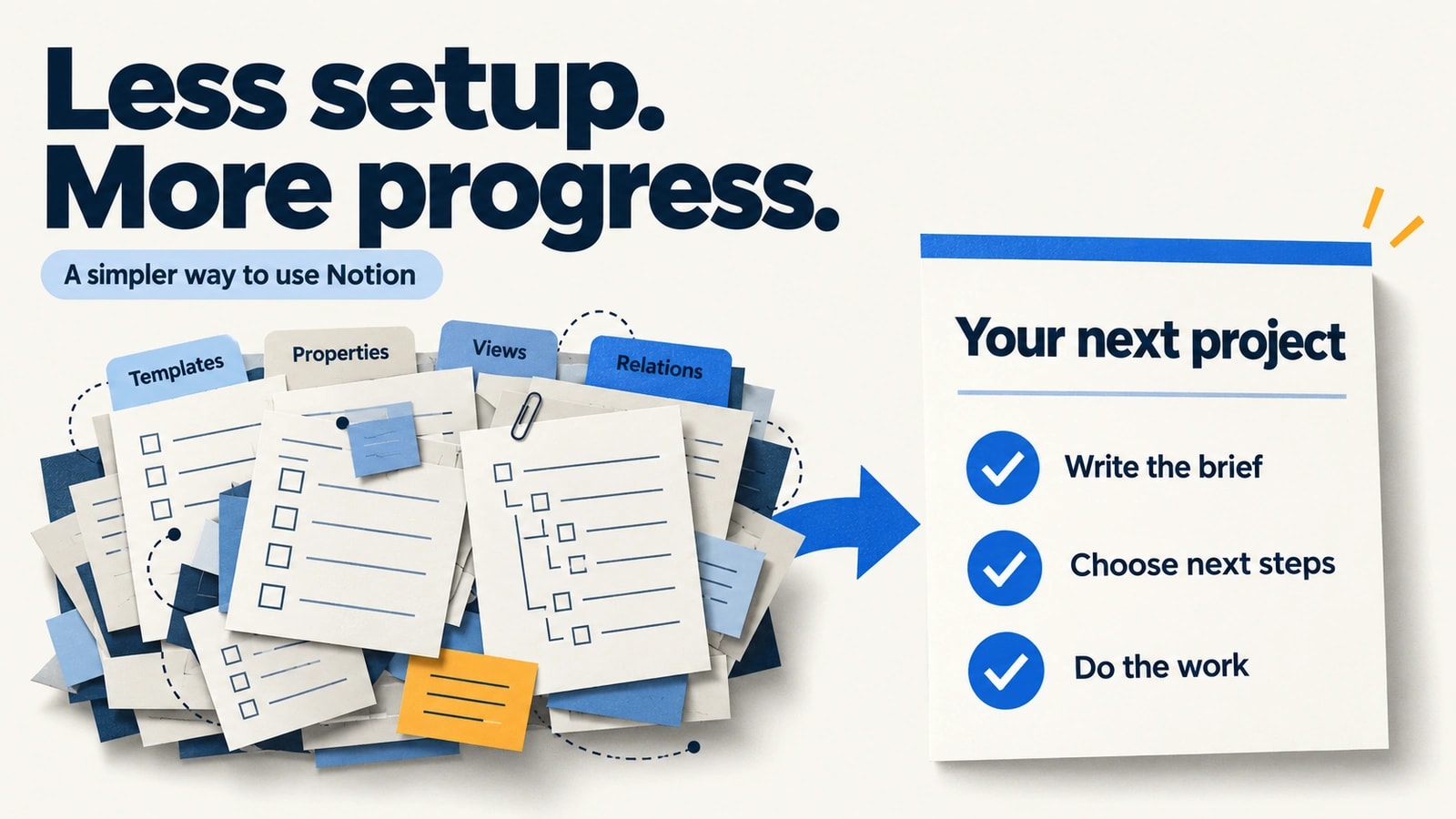
If Notion feels too complicated for personal use, try shrinking your setup before replacing the app. You can use ordinary pages and checklists, keep one place for current work, and leave advanced features alone. Switching becomes worth considering when the smaller setup still gets in your way or your work needs different tools.
Imagine opening your workspace to finish a proposal. Half an hour later, you have adjusted a dashboard, compared templates, and added another property. The proposal is still blank. That scenario is illustrative, but the underlying question is practical: does your workspace help you resume work, or give you another project to maintain?
This guide is published by ZuffSuite. It starts with changes you can make inside Notion, then helps you decide whether to stay. The portfolio example is invented sample content; the ZuffSuite screenshot comes from the real application. The five-minute routine is a suggested starting exercise, not a measured speed claim.
Why Notion can feel complicated
Notion offers many ways to represent the same work. A deadline could live in a paragraph, a checklist, or a database property. A project could be a page, a record, or a collection of linked pages. Those choices can be useful, but making them before you know what you need can stall a small personal project.
Notion's page guide explains the basic starting surface. Its database introduction describes collections of pages with properties and views. A database earns its place when repeated records need filtering or consistent fields. One draft with three next steps may need much less structure.
Nested pages add another decision: where should a note belong? Imported templates can add unfamiliar views and fields. A dashboard may look complete while hiding an outdated task list. The problem often appears when the cost of keeping these parts current exceeds the value you get from consulting them.
There is also a difference between complexity you choose and complexity you encounter. In a discussion about Notion becoming complicated, u/Firm-House6037 describes wanting a simple workspace despite prominent new features. Replies from u/Jeffersonian_Gamer and u/lissalissa3 describe continuing to use only the features they need. These are individual experiences, not evidence that every user has the same difficulty.
Both reactions matter. A simpler setup can reduce maintenance without changing how distracting you find the interface. Try addressing the setup first, then judge the experience you actually have.
Is Notion too complicated, or is your setup too large?
Notion can support plain notes and checklists. Its personal dashboard guide explicitly describes basic to-do blocks as one task-management option. You do not have to create relations or formulas before writing something useful.
Ask yourself three questions. Can I find my current work? Can I record the next action without choosing several fields? Can I return tomorrow and understand where I stopped? If the answers are yes, your setup may already be sufficient, however many features the product offers.
In a thread about becoming less productive, u/Available-Prize4403 describes accumulating trackers and spending time fixing the setup. u/Historical-Chef replies that a simple list is possible in Notion too. The useful lesson is to examine unnecessary structure before blaming the application or moving everything elsewhere.
How to simplify your Notion workspace
Work on one active project first. Keep the original information available, especially if a database contains dependencies you do not fully understand. The aim is a reversible experiment, not a weekend spent rebuilding your entire workspace.
1. Give current work one front door
Create an ordinary page called Current work. Add links to the projects you are actually advancing this week. Under each link, write the next action in one sentence. Leave reference material where it is; your front page needs to point to it, not contain a second copy.
Start with a few active projects rather than every obligation in your life. If you cannot say what you will do next on a project, write the question blocking it. That makes the page useful even before you reorganize anything else.
2. Hide unused structure before deleting it
Review the fields and views you consult when deciding what to do. Keep those visible. Hide properties added only because a template included them, and move unused dashboard links off the front page. Check formulas, relations, and other references before deleting database properties or source pages.
For repeated records, keep the database. A task name, status, and meaningful date might be sufficient for your routine. For a handful of one-off actions, an ordinary checklist may be easier to maintain. Fewer visible fields should not come at the expense of essential information.
3. Archive templates that compete for attention
Move abandoned template experiments and old planning pages into an Archive area. Keep a clear route back to them. Avoid turning the archive into another elaborate taxonomy: a recognizable title and sensible grouping are often enough for material you rarely consult.
Choose one authoritative place for active tasks. Several dashboards showing similar lists can create uncertainty about which one to update. If you keep multiple views of one database, make their different purposes clear.
4. Keep a short list of executable actions
Replace broad intentions with actions you can finish. Improve portfolio becomes choose three recent projects or draft the opening paragraph. Add a due date when a real deadline exists, rather than treating every wish as urgent. Keep later ideas away from the list you use to start today's work.
5. Separate maintenance from the work session
Keep a small list called Setup ideas. When you notice a layout improvement while writing, record it and return to the draft. During an occasional review, decide whether that change would remove a real obstacle or merely improve the appearance.
In the discussion about organizing instead of working, u/klarahtheduke suggests parking organization ideas for later. u/srancz recommends periodic adjustments instead of continual changes. Use that as an experiment you can adapt, not a universal maintenance schedule.
6. Test the smaller setup on real work
Use it for a week of ordinary sessions. Record a short note when you cannot find something, enter a task, or resume your draft. Also record what you finished. At review time, change the specific obstacle that recurred; resist designing for every possible future project.
If the simpler page works, keep it. If you repeatedly need the same missing view or field, restore it deliberately. Useful structure has a job to do.
Maintaining a system versus finishing the work
The two paths below illustrate different priorities. They are conceptual sequences, not mandatory Notion or ZuffSuite workflows. Setting up a database can be productive when the project needs one. The warning sign is repeatedly postponing the project while improving its container.
Maintaining a productivity system
- Choose a template
- Create a database
- Configure views
- Adjust the dashboard
- Start the project
The project is still waiting.
Finishing the work
- Write the brief
- Identify next actions
- Do the work
- Review the result
- Finish the deliverable
The deliverable moves forward.
When switching applications makes sense
Consider switching after the smaller setup still feels awkward, or when your main work involves documents, files, task lists, spreadsheets, or slides that you prefer to handle in dedicated surfaces. Test one active project rather than migrating your entire history. Ask whether the new workflow solves the problem you identified.
Stay with Notion when connected records are essential to how you work. Its relations and rollups documentation explains linking records and aggregating related information. If you rely on those connections, replacing them with several documents could create more manual work, even if each document feels simpler.
For a broader comparison of a simple Notion alternative for personal use, read our personal-project workspace guide. That article compares work surfaces and follows a project through to its deliverable. This guide focuses on diagnosing and reducing an existing setup.
A five-minute ZuffSuite starter routine
Suppose you are refreshing your freelance portfolio. You want an updated introduction and three recent projects, not a new operating system for your whole business. Treat the following as a five-minute starting routine; account setup, writing, uploads, and project completion can take longer.
- Open your personal workspace. Choose this one project as the session's focus. Decide what finished means before selecting optional tools.
- Create a short document in Docs. Write the outcome, what belongs in scope, and what you will check before publishing. Our project brief template offers more detail if you need it.
- Add three actions in Today using New task: choose three recent projects, draft the introduction, and check the final links. A checklist in the document can also work; choose one list to maintain. Document text does not automatically become a task.
- Keep supporting notes in the brief and use Files for project assets you need to upload. Name material clearly so you can recognize it later. For source-heavy work, follow our research-note guide.
- Return to your chosen task list and begin the first action. Leave layout improvements on the setup-ideas list until the work session ends.
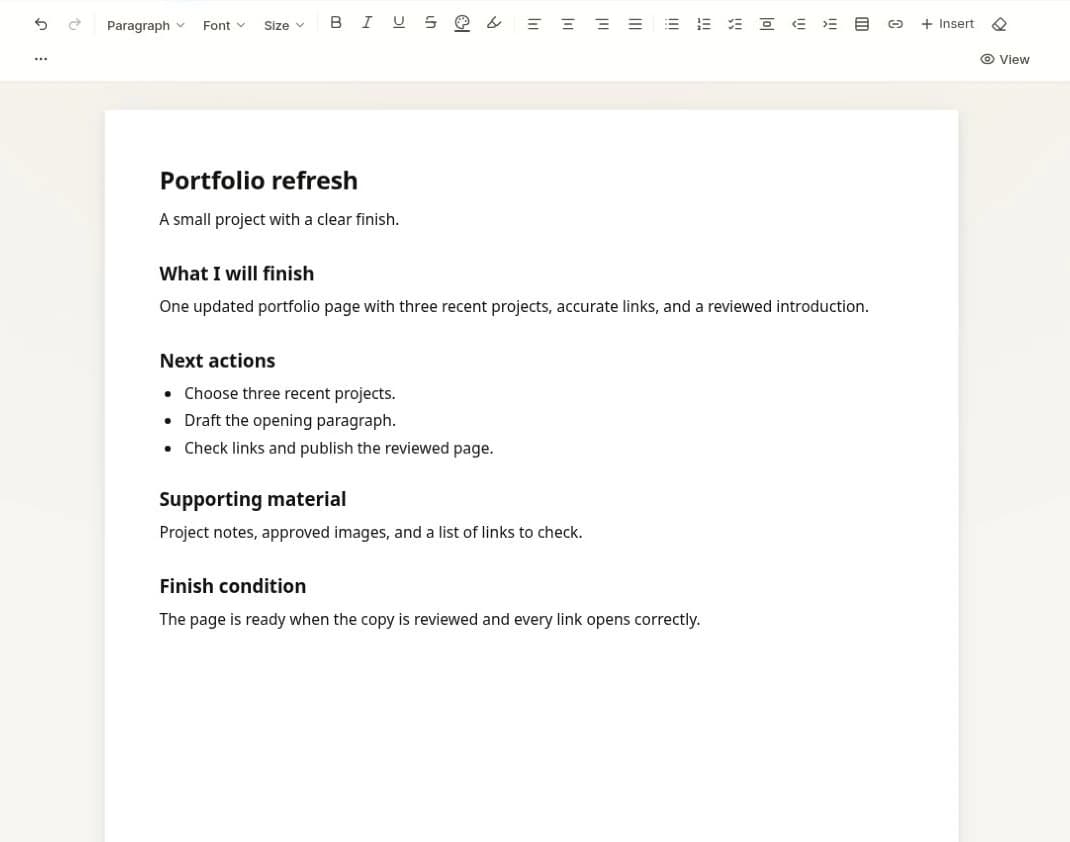
Docs creation and editing, the Today task form, and the Files upload surface were inspected in the signed-in application for this guide. The screenshot shows a real document with sample content. It does not demonstrate automatic links between separate tools or imply that a complete portfolio can be built in five minutes.
Smart Tables can help if recurring project records need structure. Sheets can handle calculations; Whiteboards and Presentations can help with visual planning or a finished deck. They are optional. Explore the template gallery only when a template answers a need you already have, and check current plans and limits before depending on sharing or AI features.
Compare the workflow you need
| Need | Notion | ZuffSuite |
|---|---|---|
| A short brief | An ordinary page with basic blocks. | A document in Docs. |
| A small task list | To-do blocks, or a database when useful. | Today tasks, or a document checklist. |
| Connected records | Properties, views, relations, and rollups. | Optional Smart Tables; assess your specific requirements. |
| Different finished outputs | Pages and structured information can organize the project. | Docs, Sheets, Whiteboards, and Presentations offer separate work surfaces. |
| Keeping things current | Maintain only useful fields and views. | Keep handoffs between separate surfaces clear. |
A short brief
- Notion
- An ordinary page with basic blocks.
- ZuffSuite
- A document in Docs.
A small task list
- Notion
- To-do blocks, or a database when useful.
- ZuffSuite
- Today tasks, or a document checklist.
Connected records
- Notion
- Properties, views, relations, and rollups.
- ZuffSuite
- Optional Smart Tables; assess your specific requirements.
Different finished outputs
- Notion
- Pages and structured information can organize the project.
- ZuffSuite
- Docs, Sheets, Whiteboards, and Presentations offer separate work surfaces.
Keeping things current
- Notion
- Maintain only useful fields and views.
- ZuffSuite
- Keep handoffs between separate surfaces clear.
ZuffSuite is a broader document-and-workflow option, with optional structured tools. It is not a complete replacement for every advanced Notion capability. Separate surfaces still need deliberate organization. A productivity app without complicated setup will not help if you recreate the same unused structure inside it.
Decide what to keep
Stay with Notion if the smaller setup lets you work comfortably, or if its databases and connected information are essential. Prefer straightforward notes when capture and retrieval are the whole job. Consider ZuffSuite when you want a simple workspace for notes and documents alongside tasks and other finished-work surfaces.
Before switching, check Notion's export documentation. Preserve the source and verify the particular notes, attachments, and relationships you depend on. An export is not proof that another application can reproduce your setup. Do not assume a complete automatic Notion import into ZuffSuite.
The useful test is ordinary: can you open the workspace, find the next action, and move the project forward? Keep the structure that helps you answer that question. You can find more practical examples in the ZuffSuite guide collection.
Frequently asked questions
Can I use Notion without databases?
Yes. Ordinary pages can hold writing and to-do blocks. Start there if you do not need repeated records, filters, or multiple views. A database is an option, not a prerequisite for personal notes.
Should I delete all my dashboards?
No. Move unused links out of your daily view first. Keep dashboards you consult for decisions, and preserve the underlying information. Simplifying access is different from deleting records or dependencies.
Will changing apps stop me from over-organizing?
Not necessarily. Apply the same boundary in the new tool: one active project, a clear finish condition, and a short action list. Evaluate what you complete before adding more structure.
Is ZuffSuite free to start?
The current pricing page lists a Free personal workspace. Check the linked plan details for capacity, sharing, and AI availability rather than assuming every capability is unlimited or included.
Keep exploring
More guides for your work
Personal workspace guide Oct 11, 2026
A Simpler Notion Alternative for Personal Projects (Without Building Databases)
Choose a simpler personal project workflow. Compare ZuffSuite, Notion, Obsidian, and Google Docs, with a practical guide from brief to finished deliverable.
Read the guide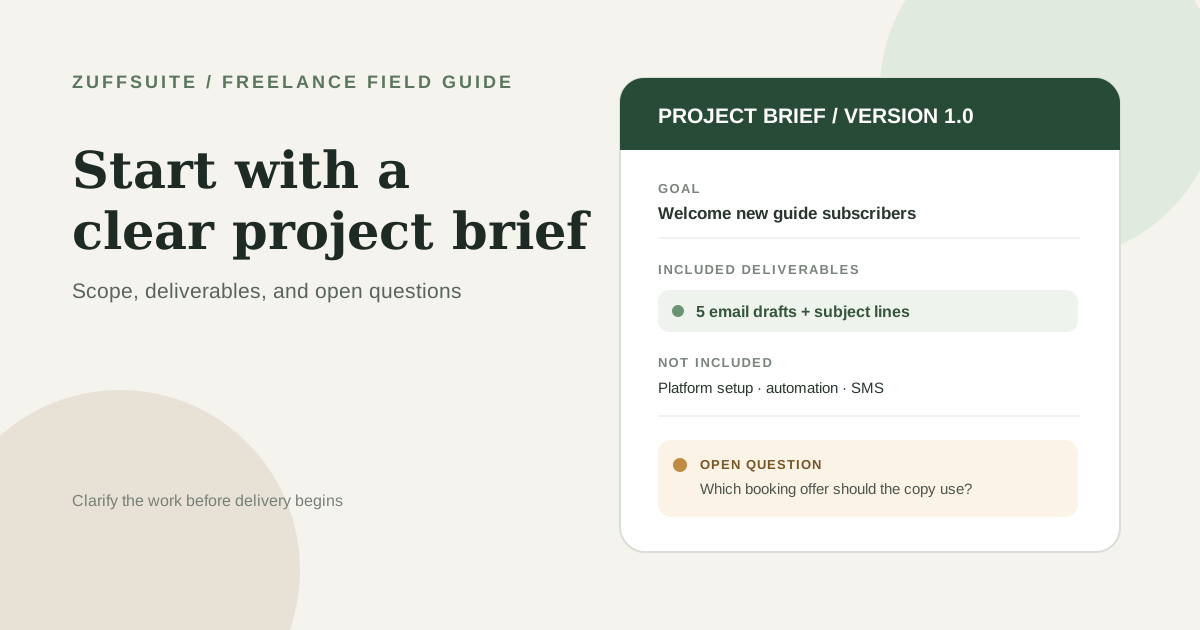
Freelance template Oct 7, 2026
Freelance Project Brief Template: Scope, Deliverables, and Open Questions
Copy a practical one-page freelance project brief, see it filled in, and learn how to clarify scope, client inputs, approvals, and open questions before you begin.
Read the guide
Step-by-step tutorial Oct 3, 2026
How to Organize Research Notes for Papers and Presentations
Keep evidence connected to sources, compare ideas by theme, and turn organized notes into a useful outline.
Read the guideA workspace for what comes next
Bring your everyday work into one workspace.
Plan a project, shape your ideas, write, and build a presentation in one place. Start on your own and share when you need to.