Template walkthrough 2026
Freelance Project Tracker Template: Clients, Tasks, and Deadlines
Copy the blank tracker, learn each field, and build a small overview you can maintain yourself.
A freelance project tracker template gives you one place to see your active deliverables, dates, status, and next actions. Use one row for each outcome you owe a client, then keep the detailed work in the relevant notes or files. A small tracker is useful when it helps you decide what needs attention without reconstructing the project from messages.
This template walkthrough includes a blank tracker, a filled example, and practical instructions for maintaining it. You can copy the tables into your preferred document or spreadsheet. You can also open the printable project tracker worksheet, edit its blank cells in your browser, then print it or copy its table into your own tool. Browser edits are temporary until you save or copy them.
The examples use fictional clients and dates. They show how the fields work, not a finished project-management system connected to a real account. Start with one active deliverable, test whether the row answers your important questions, and add the rest of your work after the structure makes sense.
Copy the blank freelance project tracker
Use these eight fields as a compact starting point. A notes reference can be a descriptive filename, a document link, or another pointer you can follow. Replace the placeholder row with your own information rather than leaving the example text in an active project.
| Client | Project or deliverable | Promised date | Work date | Status | Next action | Waiting for | Notes reference |
|---|---|---|---|---|---|---|---|
| Your client | The next output you owe | Agreed delivery date | Planned work date | Current state | Specific action | Missing input, if any | Relevant brief or file |
Your client
- Project or deliverable
- The next output you owe
- Promised date
- Agreed delivery date
- Work date
- Planned work date
- Status
- Current state
- Next action
- Specific action
- Waiting for
- Missing input, if any
- Notes reference
- Relevant brief or file
The printable worksheet includes several empty rows for your own work. It does not require an account, and it has no automated date calculations. Use a consistent date format when you copy it into a spreadsheet so you can sort dates reliably in that tool.
You can omit a column if it never helps you make a decision. Conversely, a recurring missing detail may justify another field. Keep the first version small enough to maintain. A tracker with many empty columns can feel more complete while giving you less usable information.
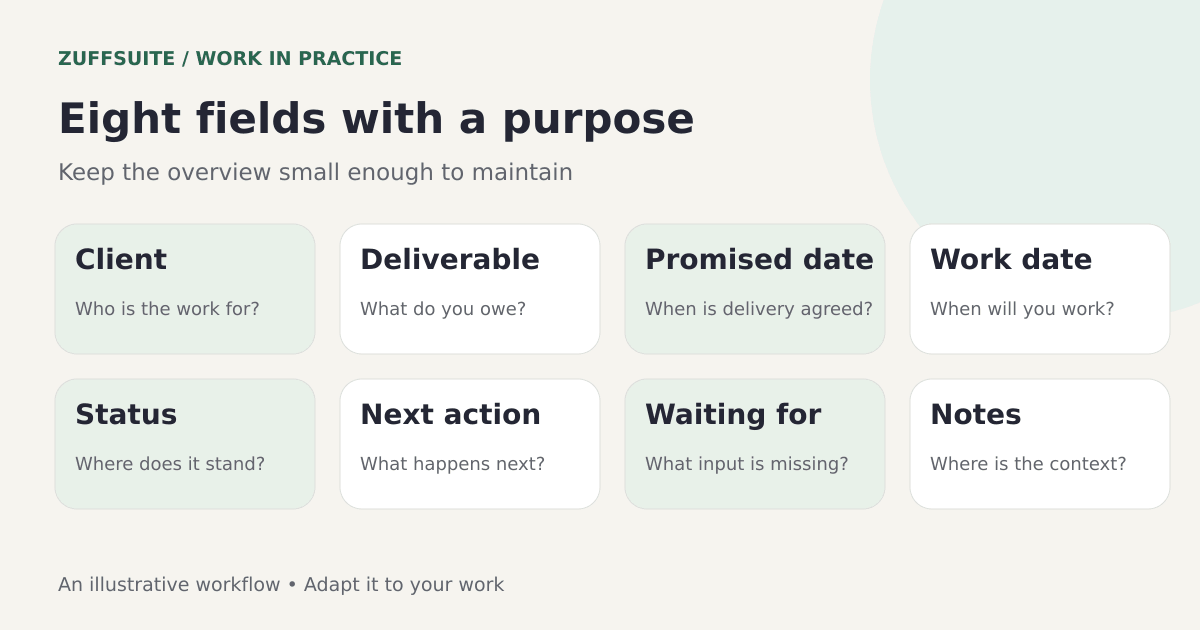
Understand what each field means
Client and project or deliverable
The client label groups related work. The deliverable describes the outcome you are tracking, such as “presentation outline” or “brochure proof.” If one engagement has outputs with different dates or review steps, create separate rows. A single project label should not conceal several commitments.
Promised date and work date
The promised date is the delivery arrangement agreed with the client. The work date is your planned session or internal milestone. They can change for different reasons. Moving a work session does not automatically change the client agreement, so retain the distinction when you update the tracker.
Status and next action
Status summarizes the state of the deliverable. The next action tells you what can move it forward. “In progress” is useful context, but it does not tell you whether to draft a section, request an asset, or inspect a revised file. Keep both fields meaningful rather than repeating the same phrase in each.
Waiting for and notes reference
Waiting for names the input or decision you cannot supply yourself. A notes reference points to the brief, draft, or decision record needed to act accurately. Together, they reduce the chance of reopening a project and losing time trying to remember why it paused.
Study the filled example
The following fictional rows describe three deliverables at different stages. The short next actions are deliberately specific. The example dates are for illustration and should be replaced in your own copy.
| Client | Deliverable | Promised date | Work date | Status | Next action |
|---|---|---|---|---|---|
| Cedar Studio | Landing page draft | October 16 | October 13 | In progress | Finish the page structure |
| Juniper Café | Brochure proof | October 15 | October 12 | Waiting for assets | Request final photographs |
| Harbor Learning | Presentation outline | October 19 | October 14 | Planned | Confirm audience before outlining |
Cedar Studio
- Deliverable
- Landing page draft
- Promised date
- October 16
- Work date
- October 13
- Status
- In progress
- Next action
- Finish the page structure
Juniper Café
- Deliverable
- Brochure proof
- Promised date
- October 15
- Work date
- October 12
- Status
- Waiting for assets
- Next action
- Request final photographs
Harbor Learning
- Deliverable
- Presentation outline
- Promised date
- October 19
- Work date
- October 14
- Status
- Planned
- Next action
- Confirm audience before outlining
In your full tracker, Juniper's waiting field would identify the photographs, and its notes reference would point to the approved brochure brief. Harbor's notes would capture the audience discussion. Those details belong near the relevant work, while the overview stays concise.
For the scheduling method behind these rows, read how to manage multiple freelance client projects. This article concentrates on using and maintaining the template rather than repeating the entire planning guide.
Add your first project in five decisions
First, name the next deliverable. Avoid entering a vague relationship such as “work for Cedar” if you owe several separate outputs. Second, confirm the agreed delivery date. If no date is agreed, label it as awaiting confirmation instead of silently converting a client's request into a promise.
Third, write the next action. Choose something that advances the work or resolves a blocking question. Fourth, record any missing input and where the supporting information lives. Fifth, choose an internal work date that fits your actual availability and leaves room for checking the deliverable.
Now read the row as if you were returning after a few days away. Can you tell what you owe, what happens next, and what might block it? If not, improve the wording before adding more rows. This small test can reveal problems more quickly than redesigning the whole template.
When a project begins with an unclear request, use the freelance intake questionnaire. Add the deliverable to your active tracker after the necessary decisions have been made. Keep tentative opportunities separate from work you have accepted.
Choose a small set of status labels
Use labels you can apply consistently. Planned, in progress, waiting, ready for review, and complete can be enough for a small personal overview. Define them in a sentence if you find yourself using the same label for different situations.
“Waiting” should identify the missing input in its neighboring field. “Ready for review” should mean you have prepared and checked a version that someone else needs to review. “Complete” should reflect the completion arrangement for that deliverable, including any required client response.
Do not treat status as a numerical estimate of effort remaining. A project can be mostly drafted and still depend on a major decision. A useful state label tells you what kind of action comes next without pretending to measure progress precisely.
If an item repeatedly moves back and forth between states, inspect why. It may need a clearer brief, a separate deliverable row, or a more specific feedback process. The tracker is a place to notice the issue, not a substitute for resolving it.
Update the tracker when decisions change
The most useful update moments are when you finish a meaningful step, receive an input, agree a change, send a version for review, or close a deliverable. At those moments, replace the next action and adjust the relevant fields. You do not need to rewrite the whole row after every minor edit.
Preserve important decisions in the project notes. A concise overview should not become a transcript of the entire engagement. Record the decision and its context in the supporting document, then let the tracker point to it. That gives you enough detail without making the main view difficult to scan.
For revision requests, keep a separate client feedback and revision log. The overview might say “draft two ready for review,” while the log records the individual changes. Those views answer different questions and can remain connected by the project name.
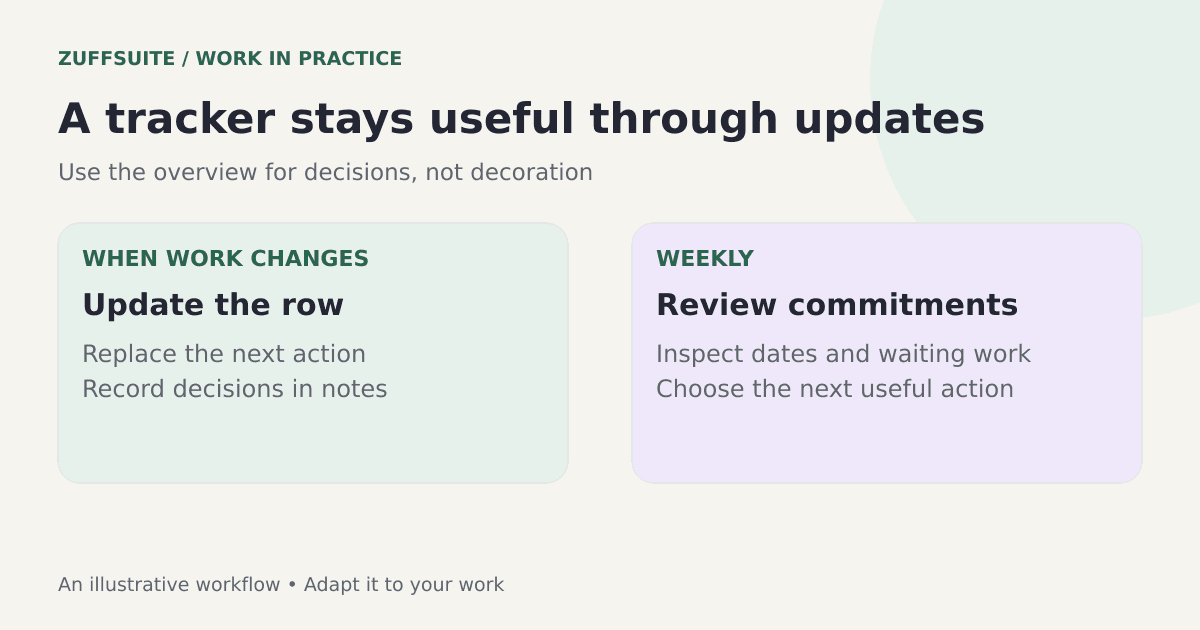
Review the active rows before taking on more work
Look at promised dates and the internal work still required to meet them. Identify waiting items that could affect the schedule. Check whether each active deliverable has an action you can begin or a specific follow-up you need to send.
Then compare a new request with that picture. A free afternoon is not always free capacity if you are waiting for several reviews that could arrive together. Consider uncertainty and the work needed after feedback, not only the tasks visible today.
Close or archive completed rows when they no longer need attention. Keep a record if it is useful for later reference, but avoid mixing a long history of finished work with a short active overview. The main view should help you understand current commitments.
Use the template in ZuffSuite
You can recreate these columns in ZuffSuite Sheets and keep project briefs or working drafts in Documents. Choose recognizable names and enter updates as the work changes. This is a personal organization method, so it can coexist with the channels your clients already use.
Start by copying the blank template and adding one project. If you prefer another starting structure, browse the ZuffSuite templates. The worksheet linked here is a separate free resource; it does not claim that a matching one-click native template has been installed in your account.
As your work expands, keep the original purpose visible: understand commitments, dates, and next actions. You can add presentations or visual planning beside the project, but the overview should remain easy to scan. A larger collection of tools only helps if you can still find the information needed for your next decision.
Troubleshoot a tracker that has stopped helping
Every row says “in progress”
Inspect the next action and waiting fields. Some projects may be awaiting a client response, while others need your attention today. Use state labels that reflect those differences. You should not have to open every file to discover which work is actually available to do.
The tracker is too wide to read comfortably
Move long context into project notes and retain a short reference. Remove fields you rarely consult. You can keep the filled example with six columns as your quick overview and use more detail only where it supports a real decision.
Dates look correct but deadlines still surprise you
Check whether you recorded work dates as well as delivery dates. Review dependencies early enough to follow up. A tracker cannot recover time you never allocated, but it can make the missing planning decision visible before the final day.
Client messages still feel scattered
Capture decisions in the project notes and actions in the tracker. You can retain the original message as a reference. The goal is not to duplicate every conversation; it is to keep the commitments created by those conversations understandable.
Should I switch tools to make the template work?
Try the method with your current tool first. A useful structure should remain understandable outside a specific app. Upwork's multi-client guide offers another perspective on organization and communication. If you want your overview beside documents and presentations, create a ZuffSuite workspace and begin with the same small set of fields.
About this guide: ZuffSuite used AI-assisted drafting to prepare this article. The diagrams and worked examples illustrate the method; they are not customer case studies. Linked references provide background, and the worksheets are available for you to adapt.
Keep exploring
More guides for your work
Field guide Oct 3, 2026
How to Manage Multiple Freelance Client Projects Without Losing Track
A worked three-client week, a small project overview, and a repeatable review to keep commitments clear.
Read the guide
Workflow playbook Oct 3, 2026
A Simple Project Intake Process for Freelancers, With a Form Template
Turn an incoming request into a clear decision, a usable brief, and a manageable project plan.
Read the guide
Step-by-step guide Sep 27, 2026
Client Onboarding Process for Small Business: A Step-by-Step Guide
A good onboarding process makes the next step obvious to both the client and your team. Here is a seven-stage process, a worked example, and a checklist you can use.
Read the guideA workspace for what comes next
Give your next project one clear home.
Keep notes, documents, tasks, and presentation work together in a personal workspace. Share something when you choose.