Personal productivity guide 2026
Too Many Productivity Apps? How to Simplify Your Workflow Without Losing Your Work
A practical way to reduce app switching, protect the work you already have, and build a simple system around the projects you need to finish.
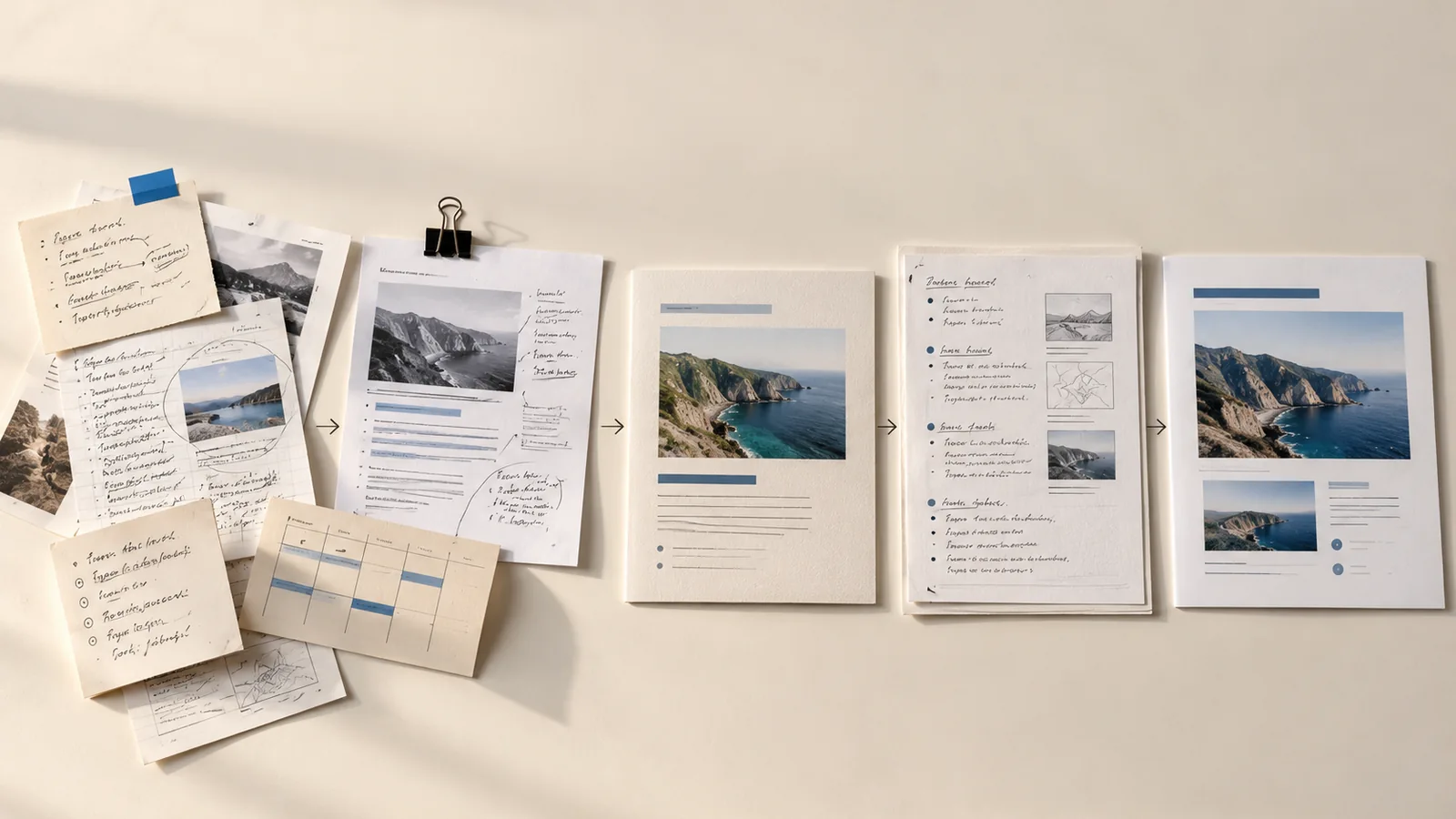
You open your browser to finish a client proposal. A useful idea is in your notes app, the research is in saved tabs, the outline is in a document, and the deadline is in a task manager you forgot to check. Before writing a sentence, you have to remember where the work lives.
That is the quiet frustration behind using too many productivity apps: each one may be good at its job, while the whole setup makes ordinary work harder to resume. You may also be paying for overlapping tools or spending evenings improving a system that was meant to save time.
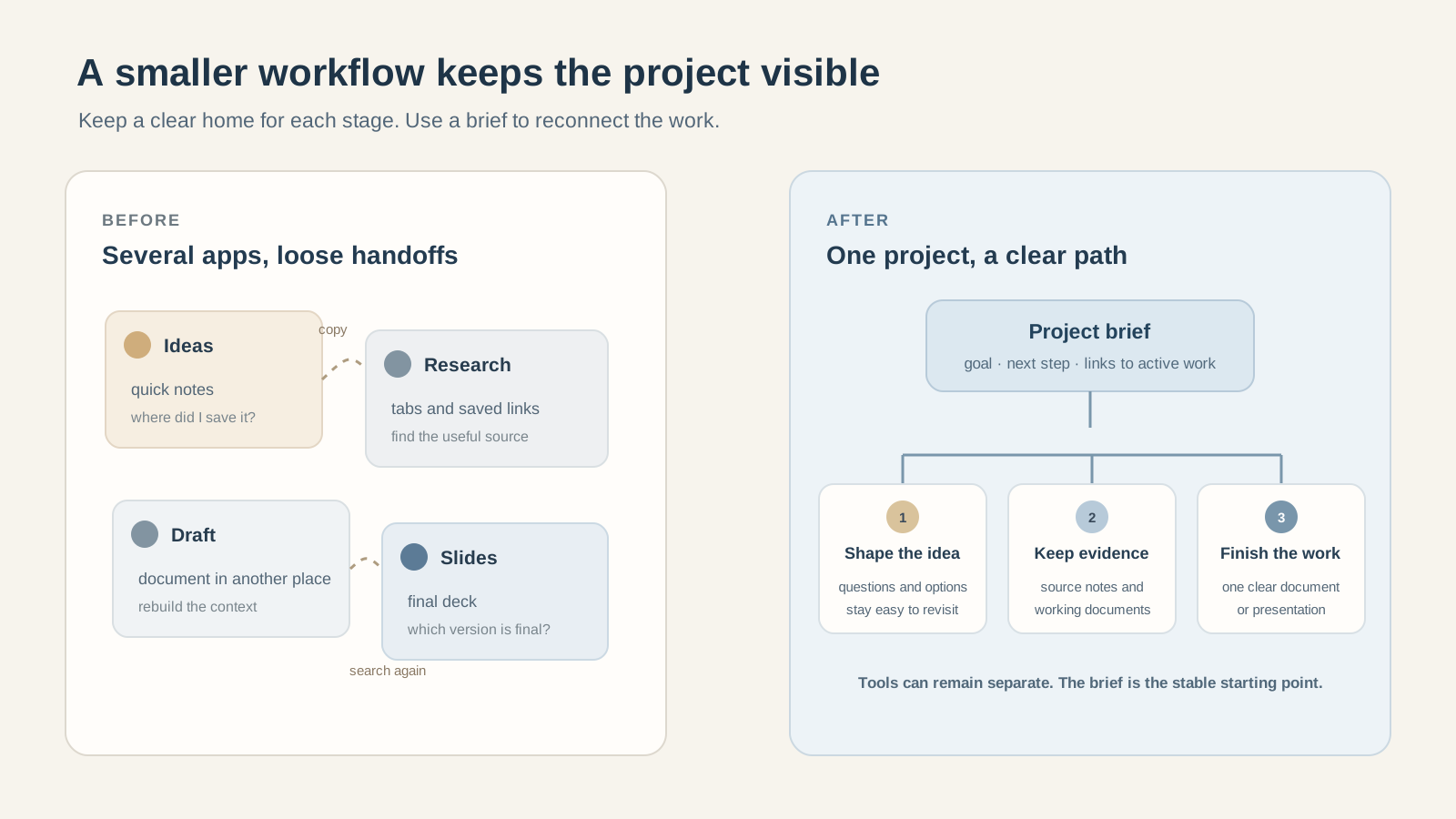
The answer is not always a new all-in-one app. A better first step is to make the work easier to find and continue. Keep the tools that solve real needs, give each one a clear job, and move only the active work that benefits from a simpler home.
Here is a safe, project-sized way to use fewer productivity apps while keeping the specialist tools your work still needs.
Why we end up using so many productivity apps
Most people do not sit down and design an app stack. They solve one immediate problem at a time. A calendar catches appointments. A notes app saves an idea. A task manager remembers a promise. A cloud drive holds a file. A new project or client then arrives with a tool of its own.
The new tool feels helpful because it removes one point of friction. The trouble appears later, when the next step happens somewhere else. The note that explains a task may be separated from the task. The presentation may contain a conclusion that never made it into the source document. You can still complete the work, but you have to maintain the connections in your head.
Switching can feel risky when old projects contain links, decisions, and attachments. People keep the old apps but add another place for new work, turning a backup into another source of truth.
System upkeep can become its own project: comparing templates and relabeling folders feels easier than finishing the proposal. Your tools should help you resume work without constant redesign.
Signs your productivity tools are slowing you down
The number of apps alone does not tell you whether your setup is too complicated. Look for repeated friction in your actual work:
- You search in several places for the latest version of a note, brief, or presentation.
- The same task, deadline, or decision appears in more than one system, and you are unsure which copy is current.
- You spend more time deciding where a new idea belongs than capturing it.
- You postpone work because returning to the project means reconstructing its context.
- You frequently rebuild a dashboard or migrate tools, but the routine still feels hard to maintain.
Controlled studies of task switching have measured performance costs when people move between tasks. That research does not tell us how many minutes an individual loses by switching apps, or prove that every extra app harms productivity. It does support a modest practical point: avoidable changes in focus can make it harder to stay with a task. See the study on the cost of a voluntary task switch for the narrower lab finding.
People describe the same tradeoff in community discussions. In an r/ProductivityApps discussion about all-in-one tools, one poster says app setup is taking time away from work. A separate r/productivity thread about too many tools, commenters point out that a specialized tool may be worth keeping when it does a job better. These are anecdotes, not survey results.
How to use fewer productivity apps without losing important work
A safer app consolidation starts with ownership and a small trial. You do not need to move your entire digital history before learning whether a simpler workflow helps.
1. Audit each tool by the job it does
List the apps, browser spaces, paper notebooks, and workspaces you actively use. Write each tool’s main job in plain language, such as scheduling, capturing ideas, drafting, communicating, or storing files. Include paid and free tools; look for overlap, not a perfect inventory.
2. Choose a home for current work
For each active project, decide where its brief, notes, next action, and final deliverable live. Specialist apps can stay separate if the brief points back to them. A clear file name and link may be enough; do not assume tools will sync automatically.
3. Protect the original before migrating
Check the old tool’s export options. Save a copy, open it, and verify any attachments, dates, links, or formatting you rely on. If the old app will remain your archive, record where it is. Keep the original available during the trial.
4. Move one active project, not your whole history
Pick a project with a clear deliverable. Move only the notes, decisions, and files needed to finish it. Leave completed work in place unless you have a reason to migrate it; a small trial is easier to review and less likely to lose context.
5. Test whether you can resume the work
Use the setup for one project cycle or a short trial. Leave a next-step note after each session. When you return, see if you can find the brief, understand the last decision, and continue without opening several old tools. Notice missing capabilities, not just tidiness.
6. Retire tools only after the trial
If the workflow holds up, stop adding work to the redundant app, confirm the archive is safe, and note anything that remains there. Set a reminder before a paid renewal. If the trial adds friction, keep the specialist tool and simplify a different handoff.
Build a simple personal productivity system
A simple personal productivity system can be organized around the work you produce, instead of a long list of app categories. Give each project a few recognizable places:
- Capture: one inbox or quick note for ideas you have not sorted yet.
- Orient: a brief that records the goal, audience, deadline, boundaries, and next useful step.
- Develop: source notes, drafts, or a working file that preserves the reasoning behind the work.
- Deliver: the finished document, spreadsheet, presentation, or other output, with a clear final version.
- Close: a short record of decisions and where the final files are kept.
The list is intentionally small. You can use different apps for different stages if their strengths matter. To organize notes, tasks, and documents in one place, choose a central project brief and link to specialist tools from it. That creates a dependable starting point without forcing every piece of work into a single application.
A real example: one project from brainstorm to presentation
Suppose Jordan is a freelance creator preparing a short client presentation for a neighborhood café. The client wants a clearer outline for a seasonal promotion, but has not decided which idea to pursue. Jordan needs to sort possibilities, verify a few details, write a recommendation, and present a direction the client can approve. This fictional example is a practical workflow, not a customer story or a timed product test.
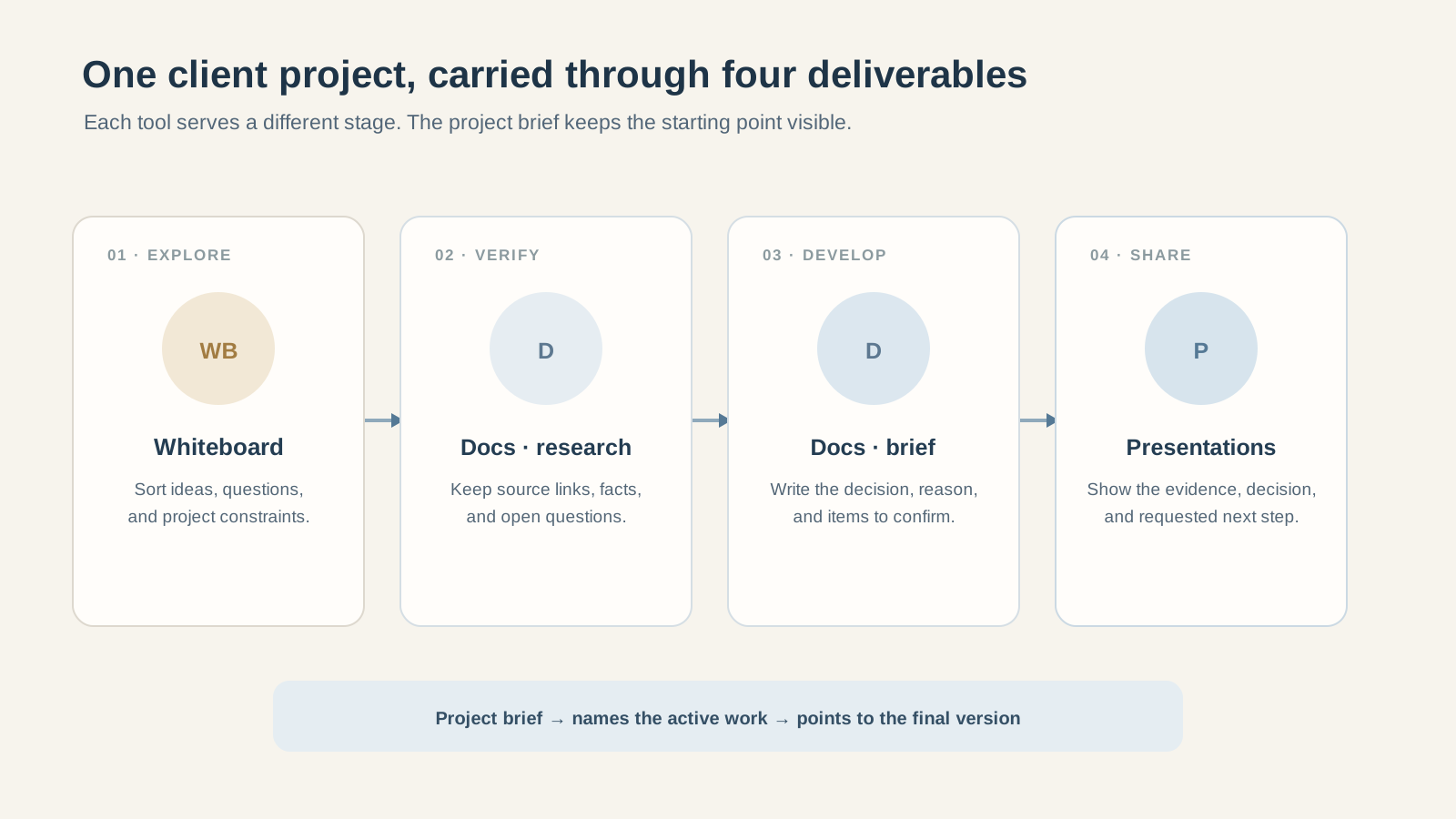
A productivity workspace for one person can make it easier to keep those working materials near one another. ZuffSuite currently offers Whiteboards, Docs, Presentations, Files, and task tracking in its personal workspace. Jordan uses only the first three here; the project does not depend on calendar automation, client chat, or a large project-management setup.
Start with the question on a Whiteboard
Jordan writes the brief question at the top: “Which seasonal offer should the café test first?” The Whiteboard holds rough ideas, customer questions, and the few constraints that matter. Jordan groups related thoughts and marks two options to research. The board is useful because the ideas are still being shaped; it does not need to become the permanent archive for every final decision.
Keep research and source notes in Docs
Next Jordan creates a short research note in Docs. Each useful fact includes its source link and the date checked, followed by a sentence explaining why it matters to the recommendation. A separate section lists open questions for the client. This leaves a readable record that can be revisited without hunting through browser history. For a deeper method, see our guide to organizing research notes.
Draft a decision-ready brief
With the research in view, Jordan drafts a concise recommendation in Docs: the goal, the audience, the selected offer, the reason for choosing it, and the details that still need client approval. The brief links to the Whiteboard and research note by name. If the client changes direction, the brief points to the original thinking without requiring Jordan to merge every note into one file. A reusable project brief can help; our freelance project brief guide shows a practical structure.
Present only what the client needs to decide
Jordan makes a short presentation with the situation, recommendation, supporting evidence, and decision requested. The deck is a communication layer, not a second place to maintain every source note. Jordan checks that its key claim matches the brief, then shares the deck using the client's usual delivery method. ZuffSuite does not need to replace that email or the client's preferred meeting tool.
Keep the final work easy to find
When the client approves a direction, Jordan labels the final presentation clearly and leaves a brief closing note with the project materials. The Whiteboard can remain as working history; the research note preserves sources; the document records the decision. Jordan does not have to migrate years of unrelated notes just to finish this project.
This workflow uses actual ZuffSuite tool names and supported work surfaces, but the diagram is an editorial illustration rather than an app screenshot. The existing research presentation guide offers another example of carrying organized notes into a finished deck.
Which productivity apps should you keep?
Keep an app when it does an important job better than the alternatives you would realistically use. A smaller stack is not automatically a better one. The aim is to remove duplicate effort and make handoffs easier.
- A calendar that reliably handles appointments, time zones, and invitations.
- A communication tool your clients, classmates, or family already use.
- Accounting, invoicing, or document-signing software with features your work depends on.
- A specialist research, design, or spreadsheet tool that saves meaningful effort.
- Secure storage or backup software that protects material you cannot recreate.
Consolidate when two tools have the same job, or when switching between them repeatedly breaks the connection between a note and the work it supports. Keep both when their difference is valuable and their handoff is clear. ZuffSuite's pricing page lists the current personal workspace tools so you can compare them with the specific stages you want to simplify.
Your productivity app audit checklist
Use this checklist on your active tools before you change anything. If you answer “no” to several questions, test a simpler arrangement with one project first.
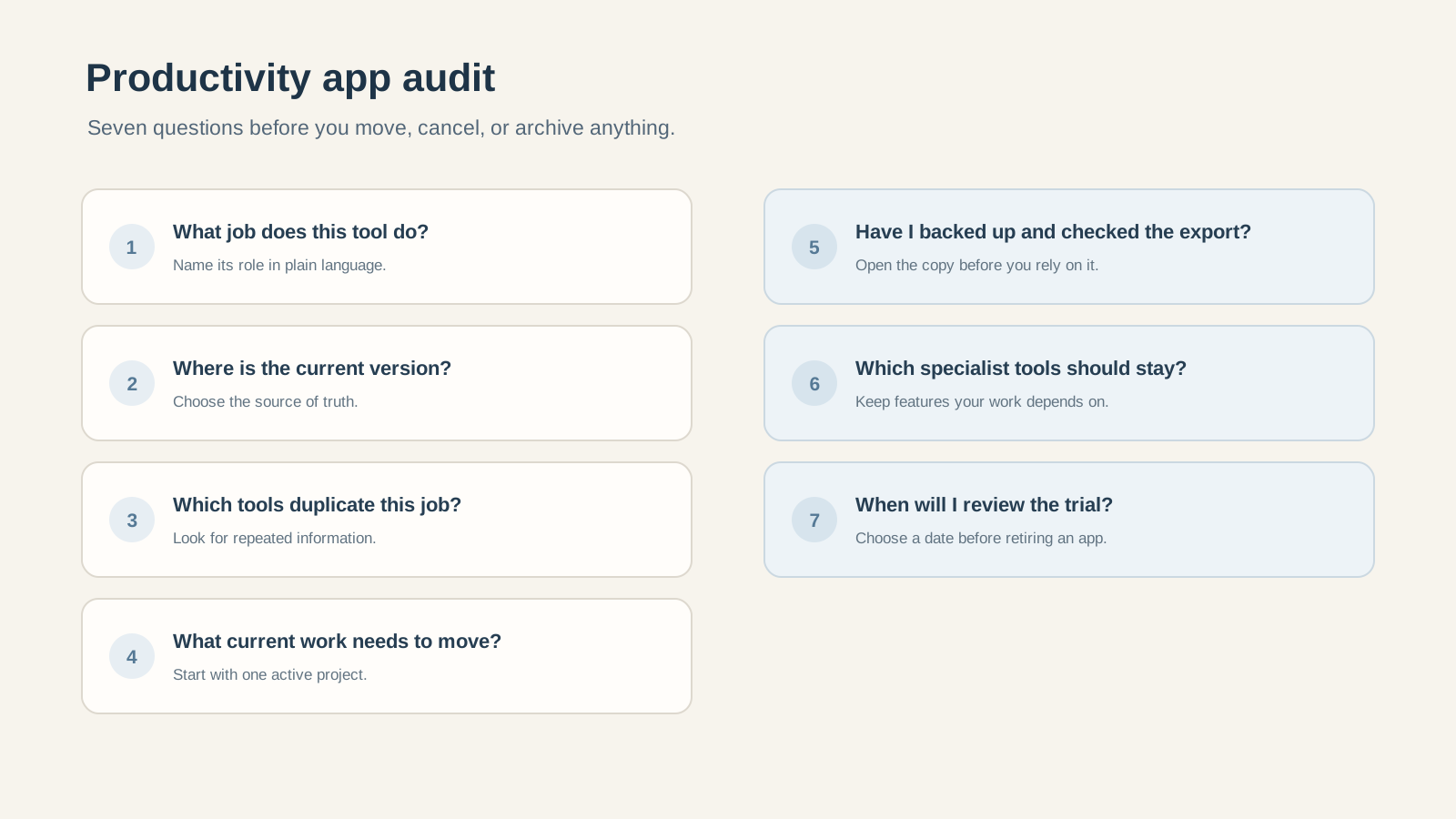
- Can I describe the main job of each tool I use for work?
- Do I know which place holds the current version of each active item?
- Have I found tools doing the same job or storing the same information?
- Can I move one current project without migrating every old file?
- Have I exported or backed up the work I cannot afford to lose?
- Which specialist apps do I rely on for capabilities a general workspace may not provide?
- When will I review the trial and decide whether to keep the old app?
If a tool is useful but its role is unclear, try giving it a narrower job before removing it. A calendar can remain the authority for meetings, while your project brief keeps the work's context. The point is to reduce uncertainty about where to look next.
Frequently asked questions
How many productivity apps should I use?
There is no ideal number for everyone. Use as few as you can while still handling the work you actually do. If a specialist tool solves a recurring problem and its handoff is simple, it can earn its place.
How can I stop switching between productivity apps?
Start by choosing one clear home for each kind of active information, then place a link or next-step note where you begin the work. Batch low-priority checks when practical. If two apps duplicate the same job, test one as the source of truth for a single project.
How can I simplify my apps without losing notes and files?
Export or back up important data first, verify the export opens, and keep the original account available during a pilot. Move only current work at first. Archive older material where it is unless a real use case requires moving it.
Can one app replace all my productivity tools?
Usually, it does not need to. General workspaces can bring common project materials together, while accounting, communication, scheduling, design, and other specialist apps keep their own strengths. Choose based on the handoffs you want to simplify.
Should I keep notes, tasks, and documents in one place?
You can, if the shared workspace makes your next step easier to find. Some people prefer a central project brief with links to a separate calendar or task manager. Either approach works when you know where the authoritative copy lives and can resume without rebuilding context.
Make your work easier to resume
Using fewer productivity apps is useful when it removes repeated decisions, duplicate updates, and lost context. Start with one active project, preserve the original files, and test a clear path from idea to deliverable. Keep the specialist tools that earn their place.
If you want one personal workspace for developing ideas into documents and presentations, review the ZuffSuite workspace and its current plans to see whether the tools match your routine. You can begin with a free account and keep your other essential apps where they help.
Keep exploring
More guides for your work
Workspace troubleshooting Oct 13, 2026
Notion Too Complicated for Personal Use? Start With a Smaller Setup
A reversible workspace reset, a short starter routine, and a practical guide to staying with Notion or trying a simpler way to work.
Read the guide
Student field guide Oct 13, 2026
How to Organize a College Group Presentation: Roles, Slides, Deadlines & Checklist
Divide the work fairly, build one clear slide story, and finish with time to rehearse. Includes a three-student example and a free planning kit.
Read the guide
Personal workspace guide Oct 11, 2026
A Simpler Notion Alternative for Personal Projects (Without Building Databases)
Choose a simpler personal project workflow. Compare ZuffSuite, Notion, Obsidian, and Google Docs, with a practical guide from brief to finished deliverable.
Read the guideA workspace for what comes next
Bring your everyday work into one workspace.
Plan a project, shape your ideas, write, and build a presentation in one place. Start on your own and share when you need to.