Evaluation guide 2026
AI Document Assistant for Small Business: What It Can Do and What to Look For
A practical look at document-aware and workspace-aware AI: what it can do, where it needs human review, and what to test before a small team relies on it.
Most small businesses first meet AI as a chat window. You paste in a paragraph, ask for a rewrite, and get something useful back. It works, right up to the moment you ask about your own business: last quarter’s proposal, the terms in a client agreement, or what your onboarding procedure says about approvals. The chatbot has never seen any of it.
An AI document assistant is meant to close that gap. The label is used loosely, though, and products behind it differ a great deal. This guide explains what a document assistant can realistically do, what context and permissions it should respect, and what to test before you let a team rely on one.
What is an AI document assistant?
An AI document assistant is an AI feature that works with your documents rather than beside them. Instead of relying on whatever you paste into a prompt, it reads a document you choose, or content you have permitted, and helps you draft, summarize, question, or check it.
The important word is “with.” A tool that can only take pasted text is a writing helper. A tool that can open the right document, tell you where an answer came from, and stay within what you are allowed to see is closer to an assistant for your work.
Generic AI vs. document-aware vs. workspace-aware AI
Three kinds of tools get grouped together. Separating them makes it much easier to judge a product.
| Type | What it knows | Good for | Watch out for |
|---|---|---|---|
| Generic chatbot | Only what you paste in, plus its general training. | Brainstorming, rewriting, explaining concepts. | It knows nothing about your business and can answer confidently anyway. |
| Document-aware AI | One document, or a chosen set of them. | Summaries, questions, and checks on a specific file. | Limited to that file. It will not know a related table or project. |
| Workspace-aware AI | Permitted content across documents, tables, forms, and tasks. | Finding information and connecting it across work. | Only as good as its permissions, sources, and honesty about gaps. |
Generic chatbot
- What it knows
- Only what you paste in, plus its general training.
- Good for
- Brainstorming, rewriting, explaining concepts.
- Watch out for
- It knows nothing about your business and can answer confidently anyway.
Document-aware AI
- What it knows
- One document, or a chosen set of them.
- Good for
- Summaries, questions, and checks on a specific file.
- Watch out for
- Limited to that file. It will not know a related table or project.
Workspace-aware AI
- What it knows
- Permitted content across documents, tables, forms, and tasks.
- Good for
- Finding information and connecting it across work.
- Watch out for
- Only as good as its permissions, sources, and honesty about gaps.
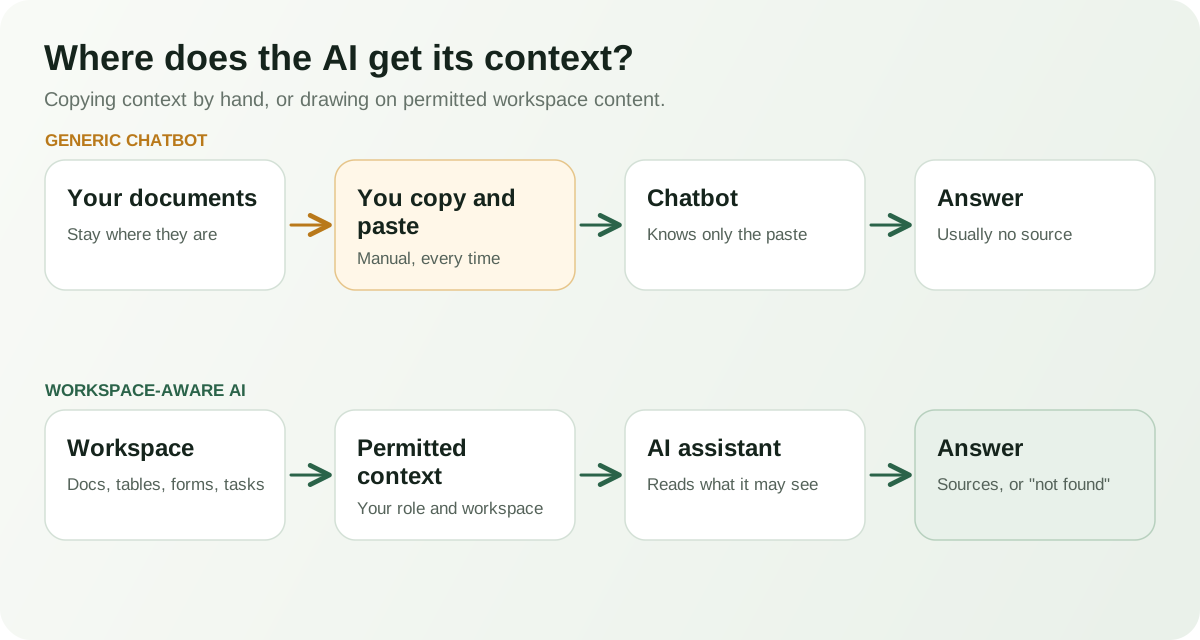
None of these is automatically better. A generic chatbot is fine for many tasks. The mistake is expecting it to behave like something that knows your work, or assuming a workspace-aware tool is trustworthy because it has access to more.
What useful document AI can do
The practical uses are fairly consistent across products. Here is what they look like in a small business.
Drafting and rewriting
The most familiar use. AI can produce a first draft from a short description, or rewrite a section for tone and clarity. It works best when you give it a clear purpose and audience, and when you treat the result as raw material. It does not know your pricing, your promises, or your legal exposure unless you supply them.
Summarizing long documents
A summary of a long report or agreement can save time, and can also drop the one exception that matters. Use summaries to decide what to read, not to replace reading. For anything with obligations, deadlines, or money, check the source passage.
Asking questions about a document
Asking “what is the notice period?” or “who owns the review step?” is often more useful than a summary. The quality depends on whether the answer is tied to the text. A good assistant shows the passage it relied on and says so plainly when the document does not answer the question.
Extracting structured information
AI can pull dates, owners, amounts, or action items out of prose and lay them out as a list or table. This is useful for meeting notes and project documents. It also needs a quick check, because a missed line or a misread number is easy to overlook in tidy-looking output.
Checking and comparing
Some assistants review a document for problems: contradictory figures, missing owners, unfinished placeholders, or vague commitments. Others compare versions or documents. These checks are helpful as a second pair of eyes. They are prompts for a person to look, not verdicts.
Helping with templates
Templates give AI something to hold on to. Starting from a proposal, scope of work, or procedure template, you can ask for help filling it in for a specific case and then edit the result. Our guide to writing an SOP for a small business is a good example of work where AI can help structure a draft while the people who do the work confirm every step.
What document AI should not do without review
The risk is not that AI is usually wrong. It is that a wrong answer reads exactly like a right one. NIST’s AI risk management work on generative AI describes this kind of risk, where systems present false or unsupported content confidently, and points organizations toward accountability, testing, and monitoring. For a small business the practical version is simpler: decide in advance what always needs a person.
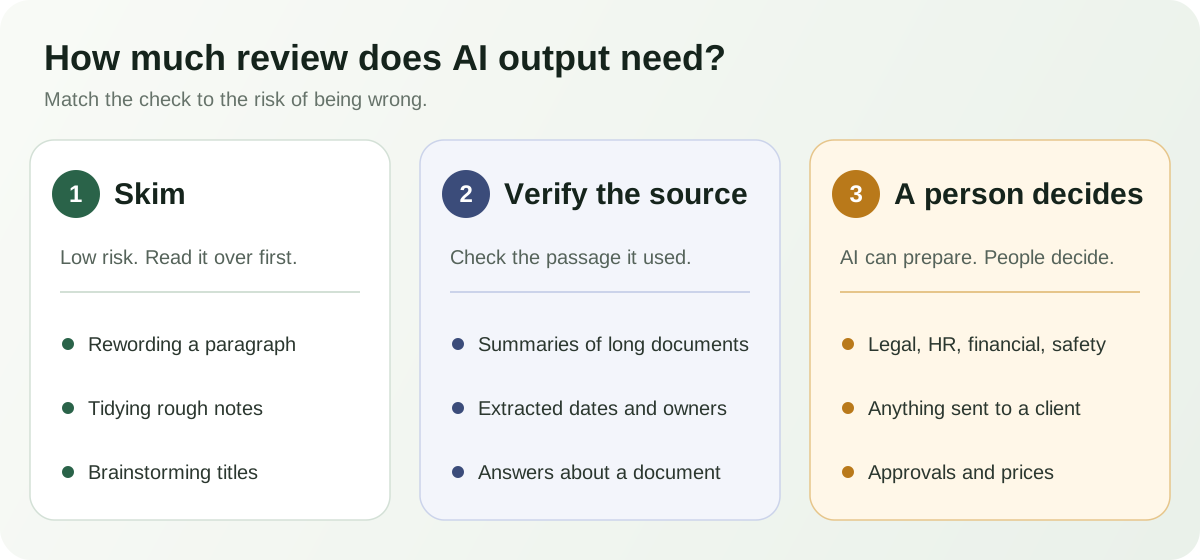
- Legal, financial, HR, safety, and compliance content, where a person with the right expertise decides.
- Anything sent to a client, customer, or regulator.
- Approvals, commitments, prices, and dates.
- Any change to a record or document that others rely on.
AI can help prepare these. It should not be the one that decides them.
Why context and permissions matter
The more an assistant can see, the more useful it can be, and the more it can expose. Ask three questions of any tool. What content can it read? Who can it read it for? And does it stay within what each person is already allowed to access?
An assistant that draws on every file for every user can leak information across roles. An assistant that reads only what the signed-in person may see is slower to set up and much safer. Look for clear, explicit scope: which documents, which tables, which people.
Sources and grounded answers
A grounded answer is one that comes from your content and points back to it. That is what lets you check it in seconds instead of minutes. Useful behavior looks like this: the answer quotes or links the passage it used; it distinguishes what the document says from what the assistant infers; and when the information is not there, it says so instead of filling the gap.
That last behavior is the easiest to test and the most telling. Ask a question whose answer you know is not in the document. A trustworthy tool says it cannot find it.
Security and privacy considerations
Before putting business content into any AI feature, find out where the content goes, whether it is kept, and whether it is used to train models. These terms differ by vendor and by plan, so read the current documentation rather than assuming.
- What data is sent to the AI provider, and is it retained?
- Is customer content used for model training?
- Can admins control who uses AI features?
- Are AI actions limited to reading, or can they change things?
- Can you export or delete your content?
Keep highly sensitive material, such as personal records, credentials, and privileged legal documents, out of any AI tool until you have answers you trust.
How to evaluate an AI document assistant
Run a short test with your own material rather than the vendor’s demo. It takes an hour and tells you more than a feature list.
- Pick a real document and ask a question you know the answer to. Check the answer and the cited source.
- Ask a question the document does not answer. It should say so.
- Give it a document with a conflicting figure. See whether it notices or quietly picks one.
- Try a summary of a long document and compare it to your own reading.
- Sign in as a person with limited access and confirm it does not reveal what they should not see.
- Ask it to take an action, such as sending or changing something. Confirm what it will and will not do without your approval.
- Read the data-handling terms for your plan.
Our guide to choosing an AI office suite for a small business puts this test in the wider context of choosing tools, and the workflow automation guide explains which steps to automate and which to keep with a person.
How ZuffSuite approaches workspace-aware AI
ZuffSuite has AI at more than one level, and it is worth keeping them apart.
Inside Docs, Ask This Document answers questions from the document you have open. It is designed to answer only from that document, to cite the exact passages it relied on, and to reply that it could not find the answer when the document does not contain one. It also treats text inside the document as content, not as instructions. Docs also offer AI Review for writing quality, Document Health for business-readiness issues such as conflicting figures, missing owners or deadlines, and leftover placeholders, plus document summaries and AI drafting help. Whether each is available depends on your role.
At the workspace level, Ask Zuffa answers questions using information already in your workspace. It can look across things like documents, Smart Tables and their records, forms, and tasks, can find files, links to what it found, and names the kinds of sources it used. It only reads: it is not designed to send, change, or delete anything, and if it cannot find enough in the workspace it says so. Build with Zuffa is a separate mode that proposes a setup for you to review before anything is created.
Some limits are worth stating plainly. Ask Zuffa works from your workspace, not the open web. It is scoped by your role and organization. Its answers still need the same checking described above. Ask Zuffa’s public description covers questions about existing workspace information, and a separate mode gives formula guidance in workbooks, so it is not a general automation engine. You can read more on the Ask Zuffa overview, and see how it fits with Docs and the connected workspace.
AI is most useful when the work it draws on is already organized. That is part of why the guides on the client onboarding process and SOPs matter: a clear document gives any assistant something reliable to work from.
Frequently asked questions
What can an AI document assistant do?
It can draft and rewrite text, summarize long documents, answer questions about a document, extract dates and owners, and check a document for problems. Each of these needs a person to confirm the result when it matters.
Is an AI document assistant safe for confidential documents?
It depends on the vendor, the plan, and the document. Check where data goes, whether it is retained or used for training, and how access is controlled. Keep highly sensitive material out until you are satisfied.
How is a document assistant different from a general chatbot?
A general chatbot only knows what you paste in. A document assistant reads a document you choose, and a workspace-aware one can use permitted content across your tools. Good ones cite what they used.
Can an AI document assistant make mistakes?
Yes. It can misread text, miss exceptions, or state something the document does not say. Ask for sources, check them, and keep people responsible for consequential decisions.
What should I test before relying on one?
Use your own document. Ask a question with a known answer, one with no answer, and one with conflicting information. Then check permissions with a limited-access user and read the data terms.
Will an AI document assistant replace people who write documents?
Not in a small business that cares about accuracy. It speeds up drafting and lookup. The knowledge of how your work really happens still comes from the people doing it.