Practical guide 2026
Small Business Workflow Automation: A Practical Guide for 2026
Start with the handoff, not the software. A calm, practical way to find the workflows worth automating and keep people in charge of the decisions that matter.
Most small businesses do not decide to build a workflow. It accumulates. A client fills in a form, someone copies the answers into a spreadsheet, a proposal goes out by email, and a reminder lives in somebody’s head. Nothing is broken on any single day. The friction sits in the gaps between the steps.
Workflow automation is a way of closing those gaps. It is not about automating everything. It is about removing repeatable friction while keeping human judgment where it matters. This guide gives you a simple model for finding those gaps before you look at any software.
What is workflow automation?
A workflow is the path a piece of work takes from the moment it starts to the moment it is finished. Workflow automation lets software carry some of that work forward on its own. Zapier, for example, describes it as streamlining and automating a series of tasks within the apps you use, built on a simple idea: when this happens, do that.
In practice that can mean a new form response creating a task, a status change notifying the right person, or an approved request opening the next step. It can also include a person in the middle. Microsoft’s documentation for Power Automate approvals is a good example: a process pauses for a human decision, then continues once someone responds. Good automation often works this way. Software handles the routine movement and people handle the judgment.
Why small-business workflows break
Small teams rarely fail because they lack effort. They fail at the handoffs, where information changes hands and nobody is quite sure who has it. A few patterns show up again and again:
- Copying data between apps, which invites typos and stale records.
- Unclear ownership, so two people assume the other one is handling it.
- Follow-up that depends on someone remembering.
- The same details entered in a form, a spreadsheet, and a document.
- Approvals waiting in an inbox with no visible status.
- Information that was correct last month and nobody updated.
- Nobody knowing what the next step is, or whose turn it is.
Notice that most of these are process problems. Buying another tool will not fix an unclear owner. That is why it helps to look at the handoff first.
The seven-part workflow model
Every workflow, from a simple approval to a full client onboarding, can be described with the same seven parts. Write each one down in a sentence before you touch any automation settings.
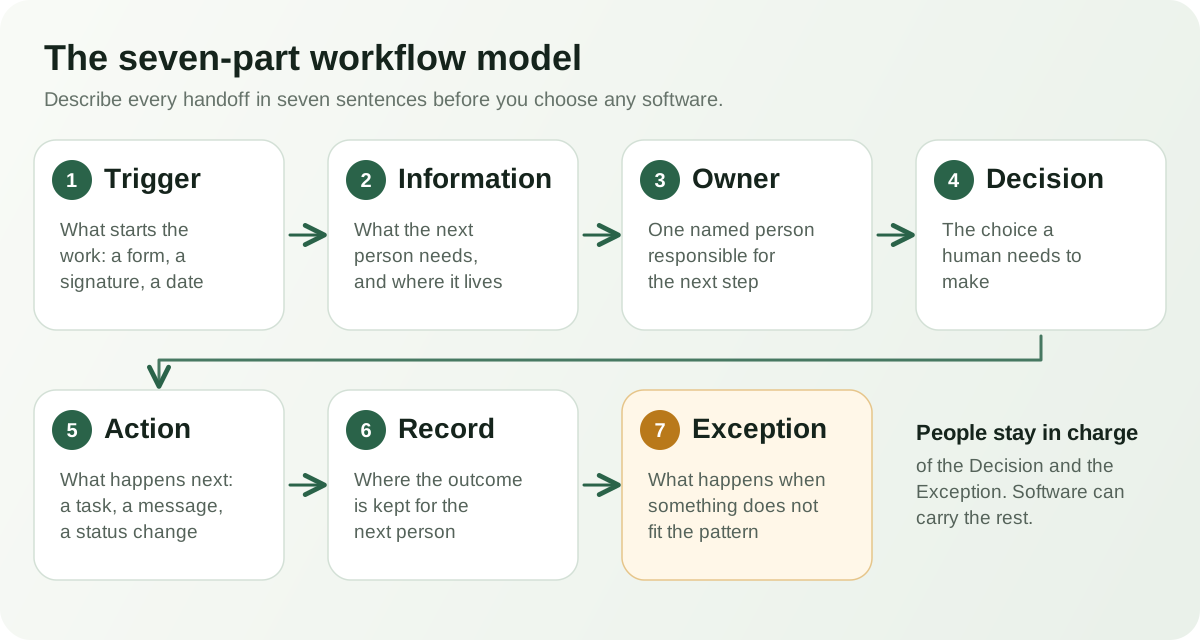
- Trigger. The event that starts the work, such as a submitted form, a signed proposal, or a new hire’s start date.
- Information. What the next person needs in order to act, and where it lives. If it is scattered, the workflow is already slow.
- Owner. One named person or role responsible for the next step. Not a team, and not “whoever sees it first.”
- Decision. The choice someone has to make: approve, reject, prioritize, or ask for more detail. Mark which decisions truly need a human.
- Action. What happens after the decision, such as creating a task, sending a message, or updating a status.
- Record. Where the outcome is kept so the next person can see what happened without asking.
- Exception. What happens when something does not fit: missing information, an unusual request, or a stalled step.
The last part is the one most people skip. An automated workflow that has no exception path will handle the easy cases well and quietly fail on the rest.
Five useful workflow automation examples
These are realistic patterns for a small team. Each one can be described with the same seven parts, and each one keeps a person responsible for the judgment call.
Client intake
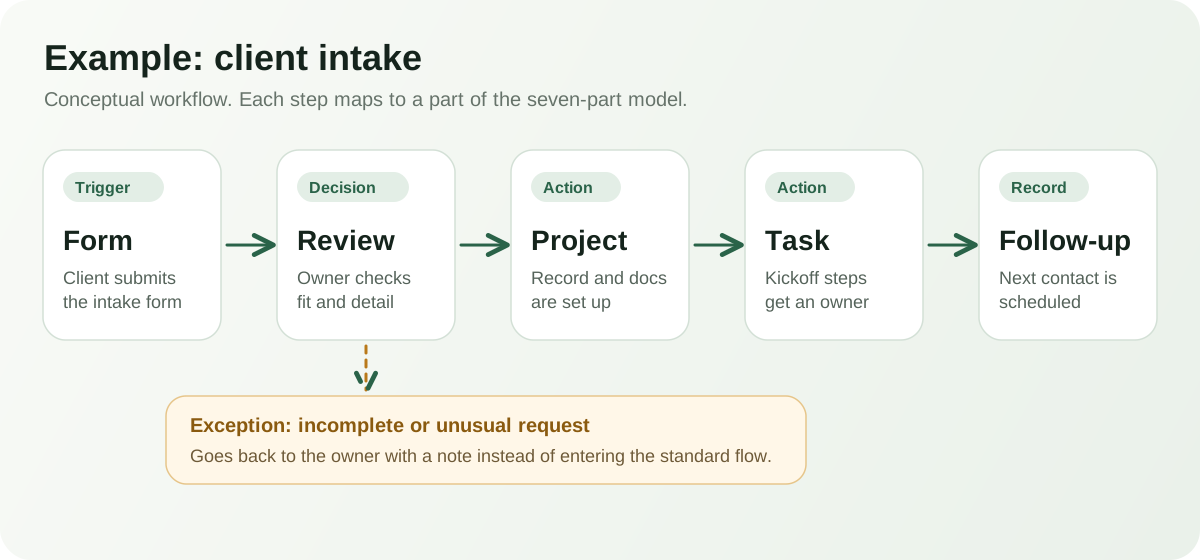
A client submits an intake form. Someone reviews it, decides whether the work is a fit, and sets up the project. A follow-up task confirms the next step. The exception is an incomplete or unusual request, which goes back to the owner rather than into the standard flow. A starting point like the Client Onboarding kit shows how a client record, welcome documents, and onboarding tasks can sit together. For the full sequence, see our step-by-step guide to the client onboarding process.
Service request
A request comes in, gets an owner, is given a priority, moves through a visible status, and ends with a resolution note. The value is in the status: anyone can see where a request stands without asking. A service request form template is a reasonable place to see what information to collect up front.
Approval request
Someone submits a request, a named reviewer approves or rejects it, and an approval creates the follow-on task. This is where a clear reviewer matters most, because requests stall when approval sits in a shared inbox. The approval request template can help you decide which details a reviewer needs.
Employee onboarding
A new hire triggers a set of documents, a checklist, training steps, and an owner for each. The checklist is the repeatable part. The welcome conversation is not. See the employee onboarding form template for the kind of information worth gathering before day one.
Inventory or purchasing
A request is approved, an order is placed, receiving is confirmed, and the record is updated. The record is the point: a tracker that reflects what was actually ordered and received prevents duplicate orders. A purchase order tracker and an inventory tracker show two ways to structure that record.
What should not be automated?
Automation is a poor fit when the value of the work is the judgment itself. Leave these with a person:
- Judgment-heavy decisions, such as whether to take on a difficult client.
- Sensitive approvals, where someone should see the full context before signing off.
- Ambiguous exceptions that do not follow a pattern yet.
- High-risk financial, legal, or HR decisions.
- Tasks where the automation would be more complicated to maintain than the task itself.
Automation can still support these areas by gathering information, reminding someone, or recording the outcome. The decision stays human.
How to choose a workflow to automate first
Not every workflow deserves attention first. Score your candidates with a few plain questions. Give one point for each yes.
- Does it happen often, at least weekly?
- Does it follow the same steps most of the time?
- Does it create repeated data entry?
- Does it have a clear owner?
- Is there a visible cost when it is late or wrong?
- Can most cases be handled without constant judgment?
A workflow scoring five or six is a strong first candidate. Two or three usually means it needs clearer steps before it needs automation. Start with one workflow, watch it for a few weeks, and note what breaks. A small, dependable improvement builds more trust than an ambitious system nobody maintains. If a workflow is not yet written down, start with a short procedure; our guide to how to write an SOP for a small business shows how.
Workflow automation vs. adding another app
When a process is slow, the instinct is to add a tool. Sometimes that helps. Often it adds another place where information lives and another handoff to maintain. A new app does not fix a missing owner, and it does not tell you what should happen to an exception.
The alternative is to reduce handoffs. Keep the form, the record, the document, and the task close together so the information travels with the work. If a specialist tool does a job better, keep it. Our guide to choosing an AI office suite for a small business covers how to weigh that trade-off.
How ZuffSuite approaches connected workflows
ZuffSuite is built around keeping common work in one place. Docs hold procedures and client documents. Forms collect the trigger information. Smart Tables and Workbooks keep the record, such as a project tracker. Tasks make the next action and its owner visible.
Business Kits start you from a working set rather than a blank page. The Client Onboarding kit assembles a client record, documents, and starter tasks, and the Operations & SOP kit does the same for documented procedures and an issue log. Ask Zuffa can answer questions about information already in a workspace, which can save a search when you need a detail from a document or table.
None of this replaces thinking through the workflow. It gives the workflow a shared home once you have. If your process needs deep integrations or advanced automation rules, a dedicated tool may still be the right addition. You can also browse the template library to see what a starting point looks like. Project work is another good candidate; our guide to the project management workflow shows where its handoffs sit.
Frequently asked questions
What is workflow automation for a small business?
It is using software to move repeatable work forward, such as turning a form response into a task or notifying a reviewer. People remain responsible for decisions that need judgment.
What should a small business automate first?
Start with a workflow that happens often, follows consistent steps, has a clear owner, and creates repeated data entry. Intake, approvals, and onboarding checklists are common candidates.
Do I need automation software to improve a workflow?
Not always. Naming an owner, writing down the steps, and keeping the record in one place often removes much of the friction. Software helps most once the process is clear.
Is workflow automation the same as business process automation?
The terms overlap. Business process automation usually describes a broader, company-wide process, while a workflow is often one specific path within it. For a small team the distinction matters less than picking one clear process to improve.
How should exceptions be handled?
Decide ahead of time who receives them and what they should do. An exception should go to a named person with the context attached, not disappear into the standard flow.