Small business field guide 2026
AI Office Suite for Small Business: What to Look for in 2026
A practical guide to evaluating documents, spreadsheets, forms, presentations, connected workflows, and AI before a small team switches tools.

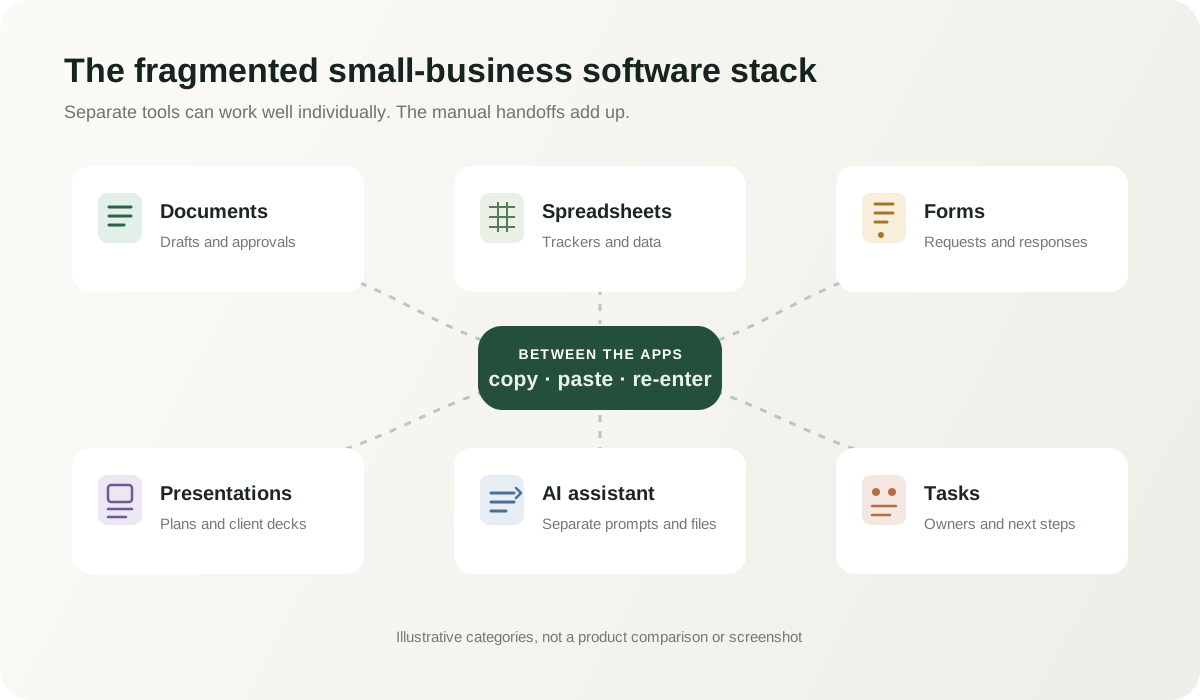
Small businesses seldom choose a complicated software stack in one sitting. A client asks for a form. A spreadsheet becomes the tracker. A new project calls for a presentation. An AI chatbot joins later, with its own files and history. Each choice solves a local problem; the handoffs between them become the work.
An AI office suite for small business should make those handoffs easier. The useful question is not whether a product has a prompt box. It is whether the everyday tools fit the work you actually do, whether the assistant can use the right context, and whether your team can still find and control its information.
What is an AI office suite?
A traditional office suite brings together core work apps such as documents, spreadsheets, and presentations. A chatbot added beside those apps can help draft or explain something, but it may not know which file, table, or version the question refers to. People still carry context between the two by copying and pasting.
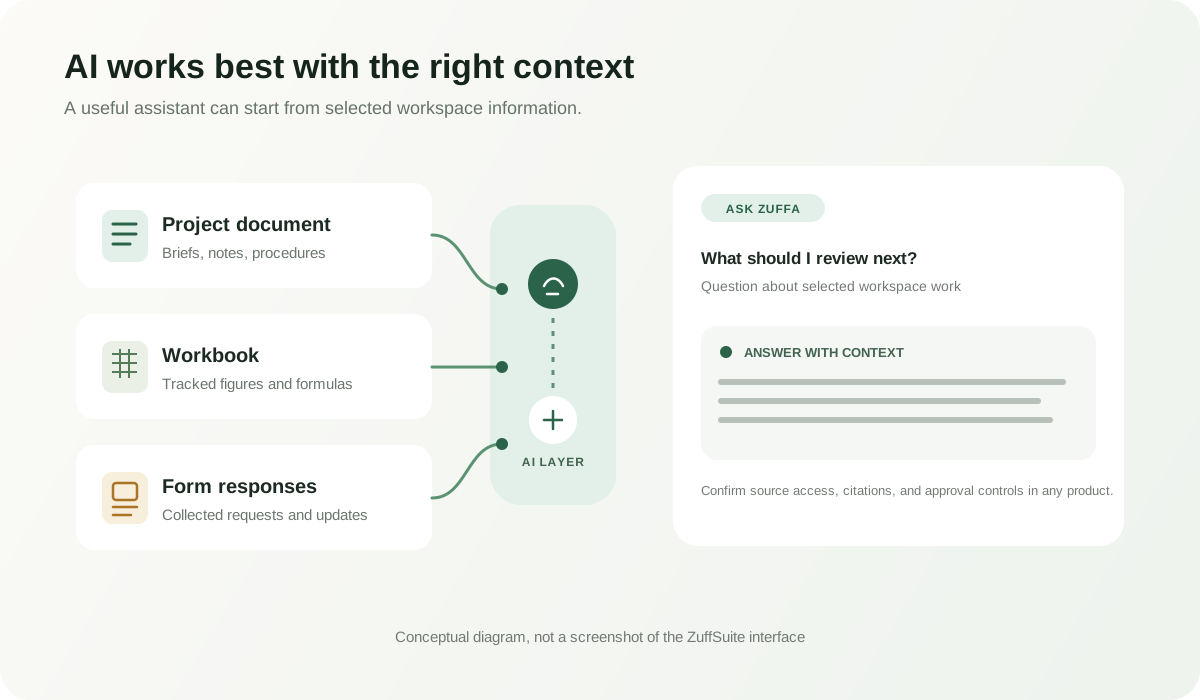
An AI-enabled workspace connects the assistant to selected work inside the suite. That can make a question about a project brief, workbook, or intake process more useful because the answer can start from the source material. “Connected” should still mean explicit permissions and clear scope—not that an AI can see everything by default. Check what content it can retrieve, how it identifies sources, and what happens before it changes a file.
Why small businesses consolidate productivity tools
App switching is only the visible cost. A lead arrives in a form, someone copies it into a sheet, a proposal is drafted elsewhere, and a task is created in a fourth tool. Each handoff adds a chance to miss a field, use an older version, or leave the next person guessing. Files also become harder to locate when their names, owners, and sharing rules vary from app to app.
Consolidation can reduce repeated entry and make routine work easier to follow, but it does not guarantee a lower bill or a simpler operation. Include migration, training, storage, export, access controls, and the specialist tools you would keep in the decision. The goal is less avoidable friction—not the smallest possible app count.
7 things an AI office suite for small business should include
Start with the work you repeat each week. A useful suite does not need every enterprise feature, but its parts should support the same real process from the first request through the finished deliverable.
1. Documents that fit the work
Look for a comfortable editor, comments or review, useful templates, version recovery, and dependable sharing. Check whether files can be exported in formats your clients and partners already use. For a small team, a polished proposal or repeatable procedure matters more than a long list of formatting controls.
2. Spreadsheets and workbooks
Separate a simple shared tracker from a formula-heavy workbook. Ask whether the suite handles the calculations, imports, filters, and exports your business relies on. If a workbook is operationally important, test representative files and formulas rather than assuming that a grid means spreadsheet compatibility.
3. Forms and data collection
Forms are more useful when their responses can move into the next step: a review queue, a customer record, or a project tracker. Check field mapping, duplicate handling, access to responses, and whether you can export the results without rebuilding the form somewhere else.
4. Presentations
A small business may turn the same brief or results into a client deck, a staff update, or a training presentation. Useful templates and a clear path from notes to slides help. Verify the sharing and export behavior before making a suite your only presentation tool.
5. Files and workspace organization
Files need owners, sensible organization, search, and sharing controls that people can understand. Review what happens when a staff member changes roles, how external collaborators are invited, and whether you can take your files and records with you. These basics often matter more than another decorative dashboard.
6. Tasks and visible workflows
An office suite should help work move after a document is written or a form is submitted. Look for clear owners, due dates, approvals, reminders, and status. For unusual or highly regulated processes, a dedicated workflow platform may still be the right tool; the suite should make the ordinary handoffs easier to see.
7. AI that can work with workspace content
An assistant is more useful when it can work from the document or data you choose, explain where an answer came from, and ask before making consequential edits. Review its access boundaries, retention terms, and admin controls. Test it with a routine task and a question whose answer is not present; a trustworthy tool should make uncertainty visible rather than inventing a business fact.
AI office suite vs separate productivity apps
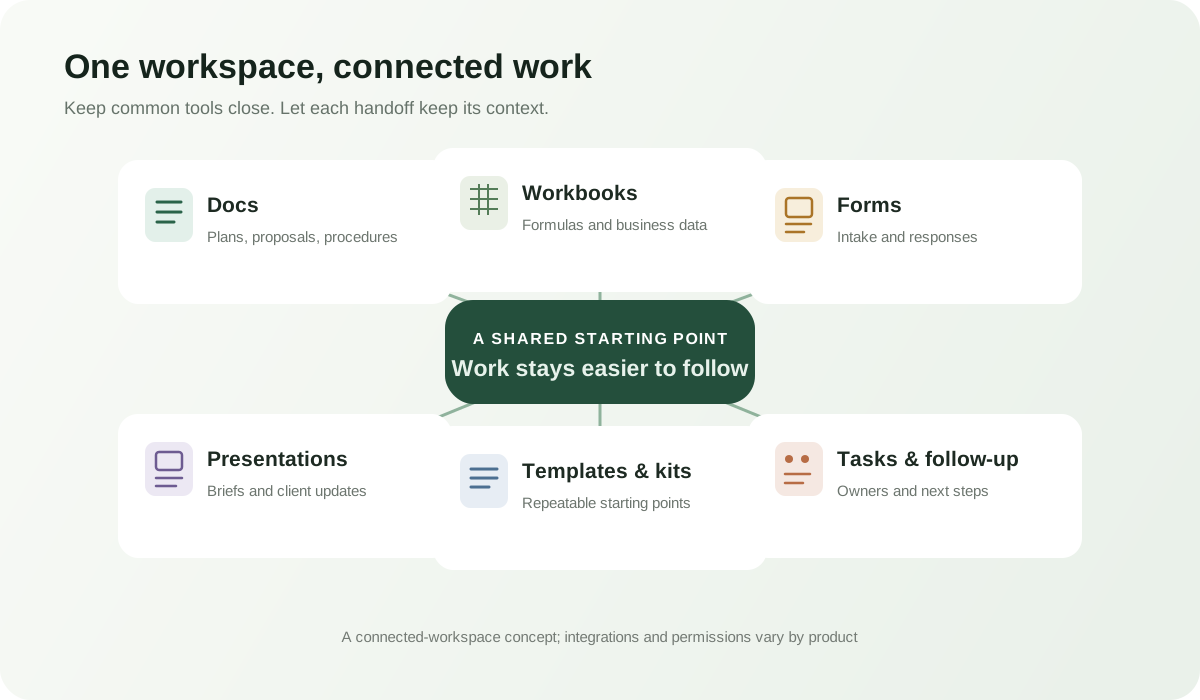
A suite is a good fit when your common work crosses app boundaries and the included tools are strong enough for that work. Separate apps can be better when one part of the business needs specialist depth, a required integration, or a workflow the suite does not handle. Many small teams use a suite as their everyday base and keep a few focused services alongside it.
A connected suite
Can provide a shared home for common files and reduce manual handoffs across everyday work.
- Useful when the same people move among docs, data, forms, and follow-up.
- Check depth, portability, permissions, and plan limits before switching.
A set of specialist apps
Can offer deeper capabilities in one area and fit an existing process or partner requirement.
- Useful when a core job depends on a specialized editor or integration.
- Check duplicate entry, disconnected files, and the time needed to keep tools aligned.
Google and Microsoft both position AI inside familiar productivity apps: Google describes Gemini for small-business work across Workspace, while Microsoft presents Copilot in Word, Excel, and PowerPoint for business. Availability and features depend on the plan, so check each vendor’s current details before comparing the total setup.Google’s small-business AI overview and Microsoft 365 Copilot for business are useful starting points for checking what each ecosystem currently offers.
When an all-in-one workspace makes sense
A solopreneur may value fewer places to maintain client notes, proposals, and follow-ups. A small team may want a form response to become an owned task without someone copying it by hand. Agencies and consultants often repeat similar briefs, plans, and client deliverables. Service and operations-heavy businesses may care most about records, approvals, and a clear view of what happens next.
An all-in-one setup is less compelling when the team already works smoothly, a specialist tool is essential, or the migration would add more risk than it removes. Try one real workflow with a small group. Keep the tools that solve a distinct problem, and consolidate only where the shared workspace makes the work measurably easier to manage.
How ZuffSuite approaches the problem
ZuffSuite is one example of the connected-workspace approach. Its public product pages show Docs, Smart Tables and formula-capable Workbooks, Forms and Presentations templates, and Business Kits. Kits provide a starting point that can bring a tracker, related documents, and initial tasks together. The product is designed so small teams can keep common kinds of work in one workspace rather than begin every process in a blank file.
Ask Zuffa is the AI assistant inside ZuffSuite. The public product description says it can answer questions about information already in a workspace; a separate mode offers formula guidance while someone works in a workbook. That is a practical example of an assistant placed near the work, not proof that every app or file type is available to every AI feature. When evaluating it—or any suite—test your own access rules, exports, and routine tasks. Explore the connected workspace overview and the Ask Zuffa overview before deciding whether it fits.
Frequently asked questions
What is the best type of office suite for a small business?
Choose the suite that supports your common documents, data, sharing, and follow-up without creating new gaps. Compare file compatibility, access controls, support, exports, and the actual cost of the plans your team needs. The best fit depends on the work and tools your business already uses.
What should an AI office suite include?
Start with documents, spreadsheets or workbooks, forms, presentations, organized files, and a way to track the next action. Then evaluate whether its AI can use permitted workspace context, explain its sources, and respect review and data controls.
Can one office suite replace multiple productivity apps?
It can replace overlapping tools when the suite handles those jobs well and your team can move its files safely. It may not replace a specialist design, accounting, customer-management, or automation product. Test real work and keep the specialized tools that provide clear value.
Is an AI office suite useful for solopreneurs?
It can be useful when client intake, proposals, planning, and follow-up are spread across tools and repeated often. A solo operator should still compare setup effort, export options, privacy terms, and whether the included apps are better than the individual tools already in use.
What is the difference between an office suite and an AI workspace?
An office suite groups productivity apps. An AI workspace adds an assistant and connects some of those apps, files, or workflows so people can use relevant context across tasks. Check which sources are supported and permitted; the label alone does not tell you how much context the assistant can use.