Practical file system 2026
Project Folder Structure: A Simple, Copyable Template
Copy a practical folder tree for client, school, or team work. See what belongs in each folder, how to name files, and how to hand off the right version.
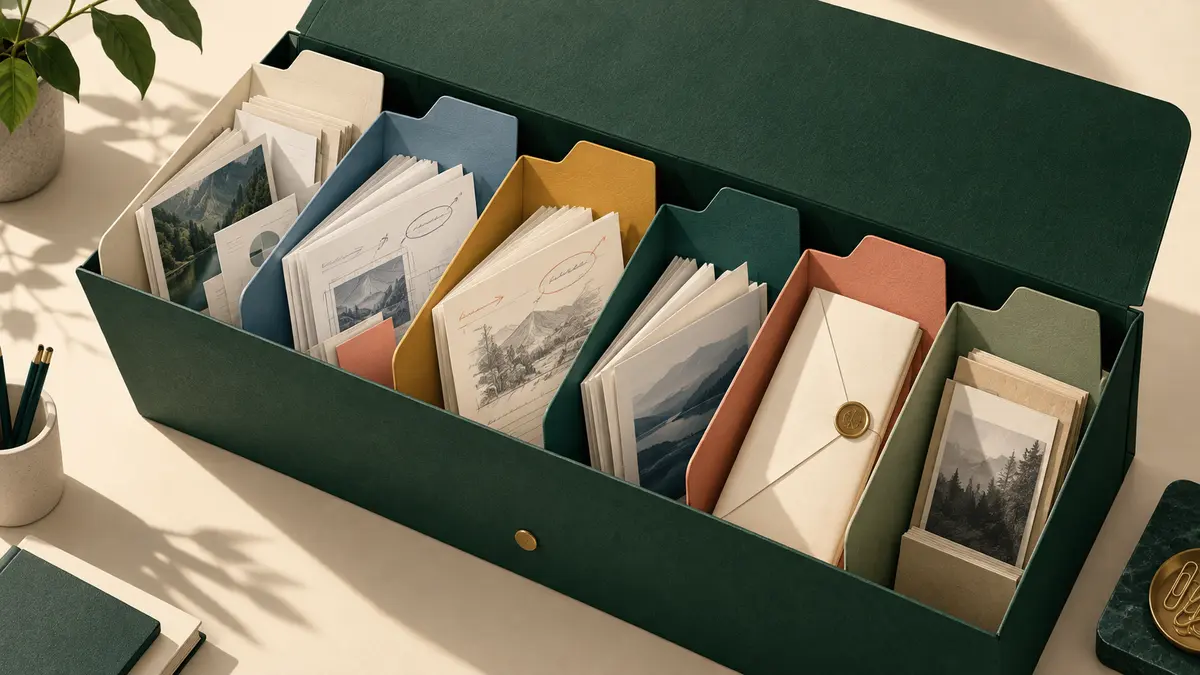
A useful project folder structure gives every file a predictable home and makes the current version easy to recognize. Start with one folder for each project, then repeat a short set of subfolders: Start Here, Brief and Decisions, Inputs, Working, Review, Delivery, and Archive. Copy the template below, remove folders your project does not need, and add new ones only when a real type of work needs its own home.
This setup works for a freelance client deliverable, a class assignment, or a small team project. Keep the folder names stable across projects so you can spend your attention on the work instead of remembering where a file went.
Copy this project folder structure template
Use the tree as a starter, not a filing rule you have to follow forever. If you are working alone, you may only need the brief, working, and delivery folders. If several people review files, keep Review and Decisions visible. Give one project a clear root folder, then copy the same small skeleton when similar work begins.
Reusable project folder tree
Project name/
├── 00 Start Here/
│   └── README.md
├── 01 Brief and Decisions/
│   ├── Brief/
│   └── Decisions/
├── 02 Inputs/
│   ├── From client or instructor/
│   └── Reference/
├── 03 Working/
│   ├── Drafts/
│   └── Source files/
├── 04 Review/
│   ├── Round 01/
│   └── Feedback log.md
├── 05 Delivery/
│   ├── Approved/
│   └── Handoff notes.md
└── 06 Archive/| Folder | Put this here | Keep it useful by |
|---|---|---|
| 00 Start Here | A README with the goal, owner, current status, next action, and links. | Updating the status when the project changes hands. |
| 01 Brief and Decisions | The agreed scope, requirements, questions, and confirmed choices. | Keeping proposals separate from decisions. |
| 02 Inputs | Materials supplied by a client, instructor, or source, plus reference items. | Leaving originals intact when you need to edit a copy. |
| 03 Working | Drafts, source documents, spreadsheets, images, and other active work. | Keeping one clearly named current working file. |
| 04 Review | Review copies, comments, and feedback by round when rounds matter. | Using one review folder per meaningful checkpoint, not per comment. |
| 05 Delivery | Approved exports and the handoff notes the recipient needs. | Including editable source files only when the agreement calls for them. |
| 06 Archive | Superseded material worth keeping after the active work ends. | Moving files here after confirming the current delivery is complete. |
00 Start Here
- Put this here
- A README with the goal, owner, current status, next action, and links.
- Keep it useful by
- Updating the status when the project changes hands.
01 Brief and Decisions
- Put this here
- The agreed scope, requirements, questions, and confirmed choices.
- Keep it useful by
- Keeping proposals separate from decisions.
02 Inputs
- Put this here
- Materials supplied by a client, instructor, or source, plus reference items.
- Keep it useful by
- Leaving originals intact when you need to edit a copy.
03 Working
- Put this here
- Drafts, source documents, spreadsheets, images, and other active work.
- Keep it useful by
- Keeping one clearly named current working file.
04 Review
- Put this here
- Review copies, comments, and feedback by round when rounds matter.
- Keep it useful by
- Using one review folder per meaningful checkpoint, not per comment.
05 Delivery
- Put this here
- Approved exports and the handoff notes the recipient needs.
- Keep it useful by
- Including editable source files only when the agreement calls for them.
06 Archive
- Put this here
- Superseded material worth keeping after the active work ends.
- Keep it useful by
- Moving files here after confirming the current delivery is complete.
Organize the outside folders by client, course, or project
Put the repeatable project structure inside a larger folder that matches how you look for work. A freelancer who remembers clients first can start with Clients, then a client folder, then one folder per project. A student can start with a course and term, then a folder for each paper or presentation. A person managing a one-time event can start directly with the project name.
| If you usually search by… | Use this path | Why it fits |
|---|---|---|
| Client | Clients / Northstar Studio / 2026 Site Refresh | Useful when you manage several projects for the same client. |
| Course | Courses / Biology 210 / Lab Report 02 | Keeps class references and assignment work together. |
| Project | Projects / Community Garden Launch | Works well when many contributors or disciplines touch one project. |
Client
- Use this path
- Clients / Northstar Studio / 2026 Site Refresh
- Why it fits
- Useful when you manage several projects for the same client.
Course
- Use this path
- Courses / Biology 210 / Lab Report 02
- Why it fits
- Keeps class references and assignment work together.
Project
- Use this path
- Projects / Community Garden Launch
- Why it fits
- Works well when many contributors or disciplines touch one project.
Microsoft’s file organization guide compares client, date, project, department, and hybrid structures. Its practical lesson is to choose a route that matches the way you already retrieve work, then apply it consistently. Google Drive’s help center also recommends clear names and folders that stay simple enough to navigate. Those guides explain the tradeoffs; the template here applies them to one project at a time.
Microsoft 365: 11 ideas for organizing digital files · Google Drive: organize files and folders.
Name project files so they sort and scan clearly
A filename should answer the questions you still have after you see its folder: what is this, which project does it belong to, and which version or stage is it? One workable pattern is:
A filename pattern
YYYY-MM-DD_project_asset_stage_v01.ext
2026-10-28_northstar-homepage_hero-copy_review_v02.docx
2026-10-28_northstar-homepage_hero-copy_approved_v03.pdf- Use a date only when it helps sort or distinguish the file. Write it as year-month-day so the order stays predictable.
- Keep the project or client name short and consistent. If the folder already supplies that context, use the space for the specific asset instead.
- Use a small set of stage words, such as draft, review, approved, and delivered. Pick terms everyone understands.
- Use a version number when you need to preserve separate snapshots. Avoid names like final-final or newest-copy.
- Write down the pattern in the README so a new collaborator can follow it.
File naming guidance from Harvard’s Data Management program describes names as a framework for showing what a file contains and how it relates to other files. It recommends documenting the components and any abbreviations when several people use the system. You do not need a research lab’s level of detail for everyday projects; borrow the useful idea of agreeing on the parts before files multiply.
Harvard Medical School: file naming conventions.
Keep drafts, reviews, and final files clear
A folder structure cannot tell people which draft is approved unless the team agrees on that signal. For a small project, keep one active working file and use the document’s version history when it is available. For a review that needs a fixed snapshot, save a copy in the review folder and label the round. Put the accepted export in Delivery, then update the README with what was delivered and where it went.
- One current working copy: make the source of truth clear before multiple people edit.
- One review checkpoint: save a dated or numbered copy when reviewers need to comment on a stable version.
- One approved delivery: label the recipient-ready file approved or delivered and do not leave competing files with the same claim.
- One archive decision: keep older files only when they help explain the work or meet your retention needs.
Make the project folder easy to hand off
The Start Here file should help someone take the next step without searching through every document. Keep it short and update it when ownership or status changes.
README starter
PROJECT
Goal:
Owner:
Status:
Next action:
Next check-in:
Current working file:
Approved delivery:
Key links:
Naming rule:
Access or retention notes:
Before sharing a folder, check its access settings and remove private material from the handoff location. If the work has contractual, legal, or organizational retention rules, follow those rules before archiving or deleting files.
For a client project, a brief and scope document helps prevent a handoff from becoming a memory test. See the freelance project brief template and the freelance project tracker template. For research or a class presentation, use the research notes guide to keep source evidence connected to the draft.
Adapt the template to your kind of project
| Project type | Helpful addition | Leave out when… |
|---|---|---|
| Freelance client work | Add Contract and Billing under Brief and Decisions if those records belong with the project. | Those records are stored in a separate accounting system or client area. |
| Research or coursework | Add Sources and Notes under Inputs, then keep your outline or slides in Working. | The course already provides a required submission structure. |
| Small team launch | Add Owners and Checkpoints to the README, and create a review round for each agreed milestone. | A separate project tool is already the agreed source for owners and dates. |
Freelance client work
- Helpful addition
- Add Contract and Billing under Brief and Decisions if those records belong with the project.
- Leave out when…
- Those records are stored in a separate accounting system or client area.
Research or coursework
- Helpful addition
- Add Sources and Notes under Inputs, then keep your outline or slides in Working.
- Leave out when…
- The course already provides a required submission structure.
Small team launch
- Helpful addition
- Add Owners and Checkpoints to the README, and create a review round for each agreed milestone.
- Leave out when…
- A separate project tool is already the agreed source for owners and dates.
For research notes that are ready to become slides, the separate guide to turning notes into a presentation shows how to move from sources and claims to a storyboard. Keep the folder system responsible for files; use your project tracker or calendar for tasks and dates.
Set up a project folder in five steps
- Choose the one top-level route you will remember: client, course, or project.
- Copy the folder tree and remove sections you do not need yet.
- Create the README with the project goal, owner, status, next action, and naming rule.
- Put original inputs in Inputs and make a separate working copy before editing when the original must stay intact.
- Check access, review the current file names, and archive only when the project is complete.
Project folder structure questions
What is a good folder structure for a project?
A good project folder structure has one clear project root, a small set of stable folders for the brief, inputs, active work, review, delivery, and archive, plus file names that make status easy to understand. Remove any folder your project does not use.
Should I organize files by client or by project?
Use client first if you regularly retrieve work by client and each client has several projects. Use project first if people usually discuss and search for a project by its name. Choose one main path and use shortcuts or links when a second route is useful; duplicated copies can drift apart.
How many levels should project folders have?
Keep the hierarchy shallow enough that a person can guess where a file belongs. Add a new level only when a folder contains several distinct types of work that people need to browse separately. If a folder holds only one or two files, a subfolder may add more clicks than clarity.
Should I use dates or version numbers in project filenames?
Use dates when chronology matters, such as weekly reports or dated exports. Use version numbers when you need to distinguish snapshots of the same deliverable. If your file platform provides trustworthy version history and people edit the same source, avoid making a separate copy for every small change.
Keep the project moving
The best project folder is a small map people can follow. Give each file a likely home, keep the current working version obvious, and leave a short handoff note for the next person. Use the copyable tree as a starting point, then change it only when your actual work shows what is missing.
Sources and related guides
- Google Drive Help: Organize files and folders — file and folder features, naming, and basic organization.
- Microsoft 365: 11 ideas for how to organize digital files — choosing among client, date, project, department, and hybrid structures.
- Harvard Medical School Data Management: File naming conventions — agreeing on file-name components and documenting a shared convention.
Keep exploring
More guides for your work
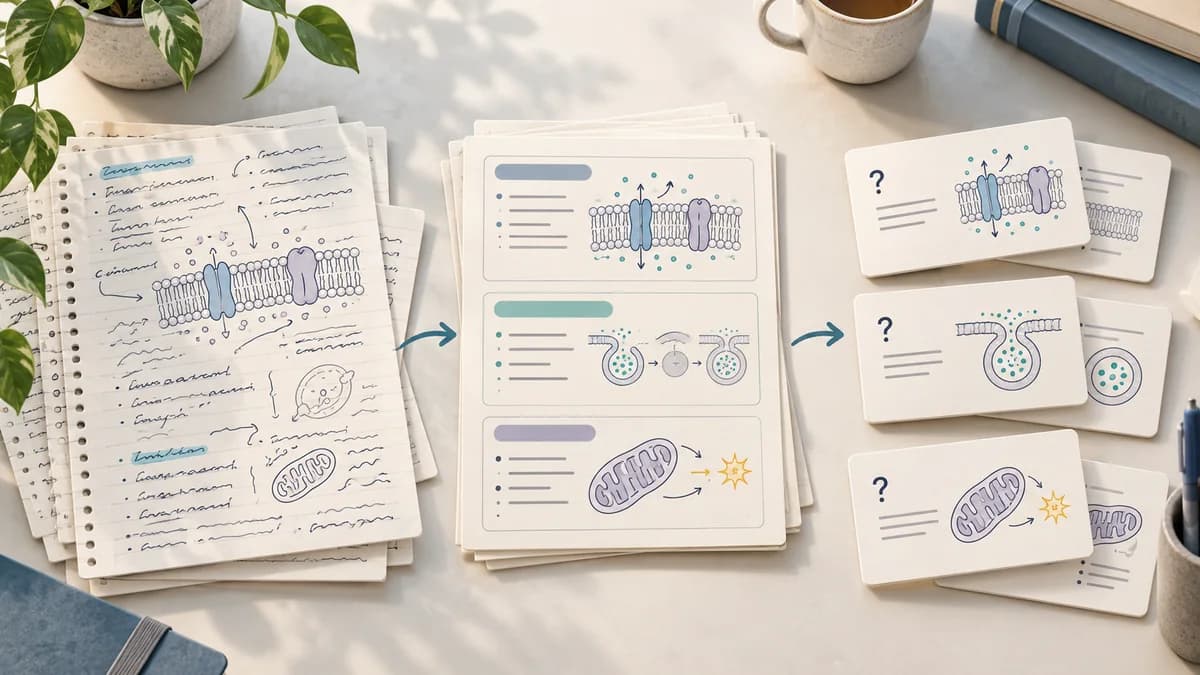
Step-by-step tutorial Oct 19, 2026
How to Make Flashcards From Notes (Step-by-Step + Free Template)
Go from messy notes to focused question-and-answer cards with a worked biology example, a review routine, and a free printable template.
Read the guide
Software comparison Oct 16, 2026
ZuffSuite vs xTiles: Which Fits Students and Solo Projects in 2026?
xTiles gives ideas and tasks a visual home. ZuffSuite brings documents, spreadsheets, forms, files, whiteboards, and presentations together. The right fit depends on the work you need to finish.
Read the guide
Template guide Oct 15, 2026
Meeting Notes Template: 7 Free Examples That Turn Meetings Into Action Items (2026)
Copy a meeting notes template, compare seven realistic examples, and use a simple method to turn discussion into recorded decisions and owned follow-up.
Read the guideA workspace for what comes next
Bring your everyday work into one workspace.
Plan a project, shape your ideas, write, and build a presentation in one place. Start on your own and share when you need to.